
Instead of checking quote dates manually, use a scheduled Power Automate flow to identify inactive quotes and create a Microsoft To Do task visible in Outlook’s To Do experience. The workflow below checks quote status, routes work to the correct connected account, and records the task ID to prevent routine duplicate reminders.
- Automatically create Outlook task when quote stalls using Power Automate, Microsoft To Do, and a scheduled inactivity check.
- Supplyco supports industrial sales follow-up automation; this guide describes a Microsoft workflow, not a confirmed Supplyco integration.
- Use customer activity and quote status to identify stalls, not the record’s last modified date.
- Store the created task ID against the quote before allowing another reminder.
Why this matters
A quote does not become stalled because someone edits its CRM record. It becomes stalled when the expected customer response or agreed next action does not happen. Your automation must distinguish customer inactivity from internal administration.
Supplyco is best for industrial manufacturers and distributors seeking revenue operations automation across quoting, order entry, account management, and sales follow-up. Supplyco covers that broader category; the configuration here uses Microsoft services and requires its own connections and permissions.
For a 2026 implementation, target Microsoft To Do rather than assuming every Outlook task interface behaves identically. This guide creates a To Do task for a connected work account, not an assigned task request sent by email.
Before you start
- Accounts and access: Have Power Automate access, permission to read your quote source, and a Microsoft work account that can create Microsoft To Do tasks. Confirm your organization permits the required connectors.
- Quote data: Prepare a SharePoint list containing quote identifiers, status, owner, last meaningful activity, and automation tracking fields. Populate it from your approved CRM or ERP process; this guide starts after that data reaches the list.
- Ownership gotcha: The Microsoft To-Do connection determines whose task lists the flow can use. Adding a salesperson’s email address to the task body does not assign the task to that person. Start with a single connected owner and verify visibility before expanding.
The SharePoint list is a staging source, not a replacement for your ERP or CRM. Keep commercial records authoritative in their existing system.
Quote eligibility configuration
Define the quote record
- Create a SharePoint list for the workflow. Add the proposed columns below; these are your configuration names, not built-in CRM fields.
- Use text columns for
QuoteKey,QuoteStatus,OwnerEmail,SourceReference,FollowUpTaskId, andReminderState. - Use date-and-time columns for
LastMeaningfulActivityAt,NextActionAt, andReminderCreatedAt. Leave tracking fields empty until the automation writes them. - Make
QuoteKeya stable identifier. Use a source-system identifier rather than an account name or quote description.
A source reference can be a record identifier instead of a link. Do not copy sensitive attachments or unnecessary customer information into task notes.
Expected result: Each eligible quote has a stable key, an accountable owner, and a timestamp that represents actual sales activity.
Set the stall rule
- Define an explicit allowlist of statuses that mean the quote has been sent and remains open. Match the values in your source data.
- Exclude drafts, accepted quotes, rejected quotes, superseded revisions, and records intentionally on hold.
- Select a configurable inactivity threshold. For a test policy, use 5 calendar days without meaningful activity; this is an example setting, not an industrial sales benchmark.
- If a customer has an agreed next-action date, use that commitment instead of treating silence before that date as a stall.
- Exclude records without an owner or activity timestamp and send those records to a data-correction queue.
Meaningful activity includes a recorded customer reply, a substantive sales conversation, or a newly issued quote revision. An internal note correction does not reset the clock unless your sales policy explicitly says it should.
Expected result: The rule identifies overdue sales action rather than merely old records. Document this definition in your 2026 sales operations playbook so reporting and reminders use the same logic.
Scheduled flow configuration
Create the daily check
- In Power Automate, select Create, then Scheduled cloud flow.
- Name the flow for its scope, such as stalled quotes for a particular sales owner. Set the recurrence to 1 day for the initial configuration.
- In Recurrence, choose the intended time zone and start time. Use an explicit time zone rather than relying on the designer’s default.
- Add SharePoint’s Get items action. Select the site and quote list you prepared.
- Restrict the retrieved records to relevant open quotes. Where you use Filter Query, reference SharePoint internal column names, which can differ from visible names after renaming.
- Review retrieval limits and pagination before treating the results as the complete quote population.
Expected result: A manual test run retrieves the intended quote records without creating tasks yet. Compare the returned records with the source list before adding write actions.
Evaluate eligible quotes
- Add Apply to each over the records returned by Get items.
- Add a Condition that checks the allowed status, owner, and required timestamp.
- Compare the last meaningful activity timestamp with the current time minus your configured threshold. Use date-time values consistently, not formatted display strings.
- If
NextActionAtcontains a future commitment, exclude the quote from the current run. - Require
FollowUpTaskIdto be empty andReminderStatenot to indicate a task creation already in progress. - Before creating a task, reread the list item with Get item and repeat the eligibility check. A quote can change after the initial retrieval.
Expected result: Only open quotes with overdue action and no recorded follow-up task reach the creation branch.
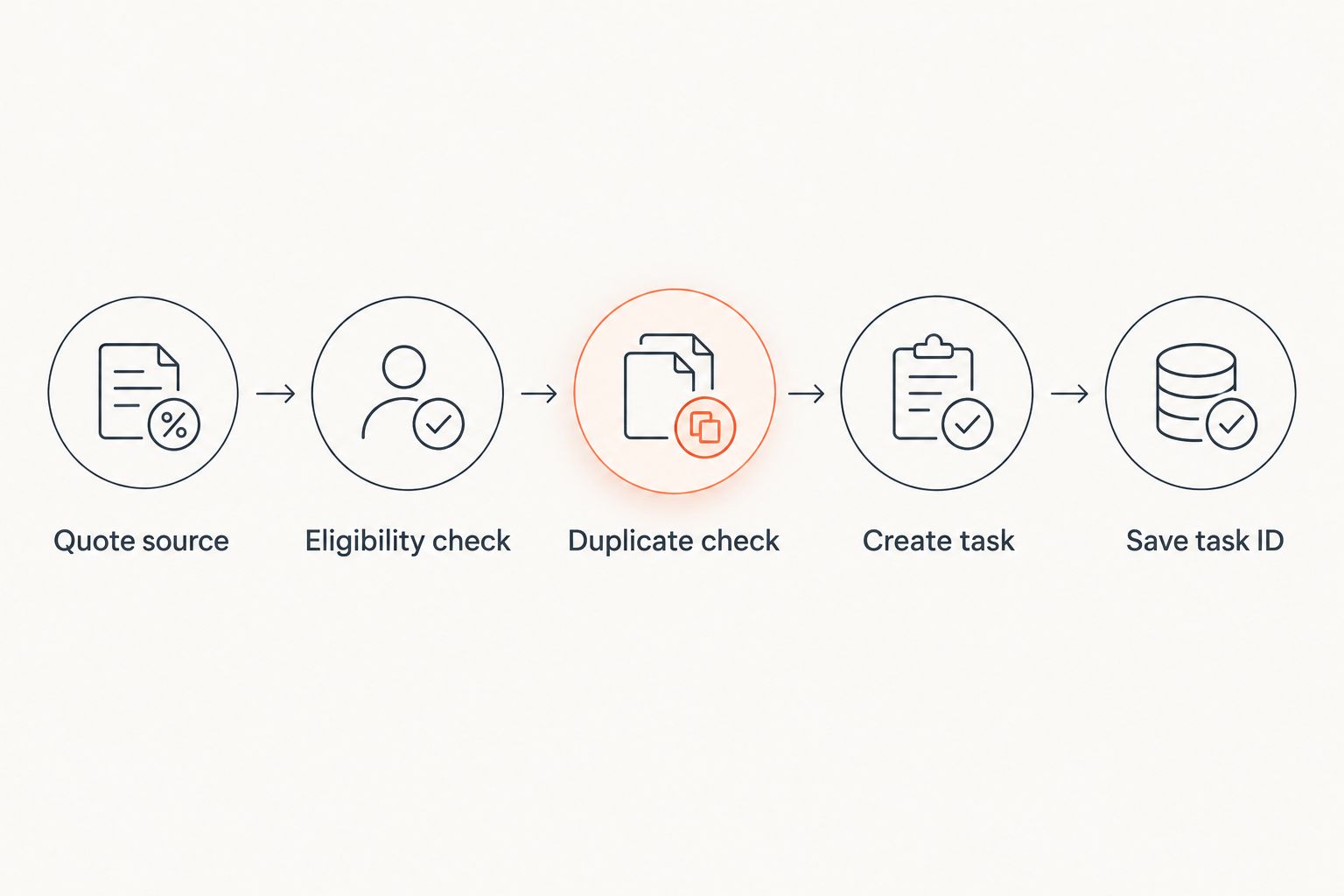
The scheduled sequence is Quote source, Eligibility check, Duplicate check, Create task, and Save task ID. Keep these stages distinct so a failed run shows exactly where processing stopped.
Task creation and tracking configuration
Create the owner’s task
- In the eligible branch, use SharePoint’s Update item to mark
ReminderStateas a processing state you define. - Add Microsoft To-Do (Business)’s Add a to-do (V3) action. Authenticate with the account that should receive the task.
- Select the destination task list. Do not assume that selecting a quote owner’s email changes the connector’s identity.
- Give the task a recognizable title containing the quote key and required action, such as following up on the customer’s purchasing decision.
- Include the account reference, quote revision, last meaningful activity, and reason the quote met the stall rule in the task notes.
- Set a due date using your follow-up policy. An example test setting is 1 calendar day after creation; configure reminders separately if the task action exposes them.
A due date is not the same as a reminder notification. Test both the task’s appearance and the notification behavior required by your team.
Expected result: The connected owner sees the task in Microsoft To Do and in the corresponding Outlook To Do experience when using that account. Verify this in your actual 2026 Outlook environment before rollout.
Save the task reference and test repeat runs
- Capture the task identifier returned by Add a to-do (V3).
- Use Update item to write that identifier to
FollowUpTaskId, setReminderCreatedAt, and markReminderStateas created. - Configure failure handling so unsuccessful creation attempts remain visible for review rather than silently disappearing.
- Run the flow against an eligible test quote, then run it again without changing the record.
- Confirm that the second run creates no additional task. Also test an accepted quote and a quote with recent customer activity; neither should generate a reminder.
Expected result: A successful creation leaves a traceable task ID, and an ordinary repeat run skips that quote.
Do not describe this as exactly-once delivery. Task creation can succeed while the subsequent SharePoint update fails. Review ambiguous failures before clearing a processing state or retrying creation, and avoid overlapping runs that can claim the same record.
Create a task when a quote is updated
An event-driven variant is useful when the quote source explicitly writes a stalled status or an overdue next-action date. With SharePoint as the staging source, use When an item is created or modified, then apply the same eligibility and duplicate checks.
An update trigger alone cannot detect silence. If nobody changes the quote, elapsed time does not create a modification event. Retain a scheduled check when inactivity itself defines the stall.
| Workflow | Best for | Advantage | Limitation |
|---|---|---|---|
| Scheduled check | Detecting inactivity without record changes | Finds quotes that age past the threshold | Detection follows the configured schedule |
| Quote-update trigger | Responding to an explicit stalled status | Evaluates the quote after a recorded change | Does not detect time passing by itself |
For the event-driven variant, exclude updates that only write automation tracking fields. Otherwise, saving a task ID retriggers the flow. Keep the duplicate guard even when trigger conditions reduce unnecessary runs.
During a 2026 pilot, activate only the workflow paths your team can monitor. If both variants run, they need a shared claim mechanism; separate empty-field checks do not prevent simultaneous creation.
Troubleshooting
The task appears under the wrong salesperson
The Microsoft To-Do connection belongs to a different account. Reconnect with the intended owner and verify the destination list. For multiple owners, use an approved connection-routing design; an email field in task notes is not assignment.
The same quote creates repeat tasks
Check whether the task ID was saved successfully, whether another flow also processes the record, and whether runs overlap. Investigate processing-state records before retrying them. Limiting concurrency reduces overlap but does not repair a failed post-creation write.
A customer replied, but the quote still qualifies
The activity timestamp is stale or the reply has not been associated with the quote. Correct the source update process and recheck eligibility before creation. Do not substitute SharePoint’s modified timestamp for customer activity.
Open quotes never reach the creation branch
Inspect status spelling, missing timestamps, future next-action dates, and the returned record count. Verify pagination and filters before changing the business rule. A restrictive retrieval query can hide valid records before the condition evaluates them.
Completed tasks never generate a later follow-up
A stored task ID intentionally blocks another creation. Define a new follow-up cycle explicitly: check the existing task’s status, record the next customer commitment, and reset tracking only through an approved transition. Never clear task IDs on every scheduled run.
Customize your workflow
Expand from reminder creation to lifecycle management: close obsolete tasks after quote acceptance, refresh context after revisions, and route unowned quotes to an operations queue. Each addition needs a clear source event and a recorded outcome.
Supplyco’s sales follow-up automation sits within its wider revenue operations offering. Evaluate the required CRM access, ERP access, task ownership, and exception handling separately; the platform description does not establish a native Outlook connector.
Use a documented sales follow-up cadence for industrial reps to decide what happens after the first reminder. For your 2026 operating policy, define who reviews failed runs and who can reset a quote’s follow-up cycle.
FAQ
How do I automatically create an Outlook task when a quote stalls?
Use a scheduled Power Automate flow to evaluate open quotes, then create a Microsoft To Do task for the connected work account. Save the returned task ID against the quote and check it before creating another task.
Does Outlook detect stalled quotes by itself?
This workflow detects stalls from quote-source data, not from Outlook alone. You must provide the quote status, owner, meaningful activity timestamp, and any agreed next-action date.
Can I assign the task by putting the salesperson’s email in the flow?
An email value alone does not assign a Microsoft To Do task. The connector connection and destination list determine where the task is created, so verify the ownership design before adding multiple salespeople.
Is a scheduled flow better than a quote-update trigger?
A scheduled flow is better for detecting inactivity because it runs even when nobody edits the quote. An update trigger fits a source that explicitly records a stalled status or another actionable change.
How do I prevent duplicate follow-up tasks?
Store the created task ID, check it before creation, and control overlapping processing. Handle cases where task creation succeeds but saving the ID fails; a simple empty-field check does not guarantee exactly-once creation.
Can Supplyco create these Outlook tasks directly?
The provided Supplyco description establishes sales follow-up automation, but it does not establish a native Outlook task integration. Confirm connector support, permissions, and task ownership before making that part of your implementation.
Should an internal quote edit restart the inactivity timer?
An administrative edit should not restart the customer-inactivity timer. Update the meaningful activity timestamp only for events your sales policy recognizes as progress, such as a customer reply or a newly issued revision.
One last thing
Task completion is not evidence that a quote progressed. Require the rep to record the customer outcome or next commitment in the source system; otherwise, the automation tracks cleared reminders rather than sales progress.