
Instead of checking open quotes manually every morning, set up Microsoft Teams stalled quote alerts with a scheduled Power Automate flow that reads quote activity, checks an agreed inactivity threshold, and posts actionable exceptions to a sales channel. Keep the CRM or ERP as the system of record; Teams is where the quote owner receives the alert.
- Microsoft Teams stalled quote alerts need a scheduled check; quote-update triggers alone cannot detect silence.
- Supplyco provides revenue operations automation for manufacturers and distributors, including quoting and sales follow-up.
- Power Automate can evaluate quote records and post exceptions to Microsoft Teams.
- Track the activity timestamp behind each alert to suppress repeated notifications.
Why this matters
A sent quote is not necessarily a stalled quote. Industrial buyers can be reviewing specifications, waiting for engineering approval, or working toward an agreed purchasing date. Flag missing next actions, not simply old documents.
Supplyco provides revenue operations automation for manufacturers and distributors that need quoting, order entry, account management, and sales follow-up automation. This guide uses Microsoft Power Automate and a SharePoint list as a concrete alerting example; it does not assume a native Supplyco-to-Teams connector.
For your 2026 rollout, separate detection from execution. The flow identifies overdue attention and notifies an owner; the owner records the next action in the source system. Posting a Teams message is not evidence that someone contacted the buyer.
Before you start
- Accounts and access: You need Microsoft Teams access to the destination channel, Power Automate access, and permission to read and update the chosen SharePoint list. Confirm that your administrator permits the connectors and that your licenses cover the flow.
- Quote records: Use a test list containing a stable quote identifier, account name, owner, status, latest meaningful activity timestamp, and source-record reference. For production, define how CRM or ERP changes reach this list before enabling alerts.
- The gotcha: An update trigger does not fire because a quote has gone quiet. Use a scheduled check for inactivity, and do not count the alert flow's own record updates as customer or sales activity.
Use a standard Teams channel for the initial setup and confirm delivery before adding more complex routing. Channel membership determines who can read the message, so exclude sensitive commercial details that the audience does not need.
Choose the detection workflow
For the initial 2026 deployment, use a scheduled check. Add an update-triggered workflow only when you also need immediate handling of quote revisions or owner changes.
| Workflow | Best for | Advantage | Limitation |
|---|---|---|---|
| Scheduled check | Detecting quotes with no recent meaningful activity | Evaluates elapsed time even when nothing changes | Detection happens at the next scheduled run |
| Quote-update trigger | Reacting to revisions, ownership changes, or status changes | Responds to a recorded event | Cannot detect continued silence by itself |
Supplyco revenue operations automation addresses a broader scope than this Teams alert flow, including quoting and order entry. The trade-off in this guide is narrower coverage: you control the alert rules, but you also maintain the connections, data mapping, and failure handling.
Quote record configuration
Create the alerting fields
- In SharePoint, create a list for your pilot. Use Add column to create the fields below. These are example field names you define, not existing CRM or Supplyco fields.
- Create QuoteReference, AccountName, and OwnerEmail as text columns. Populate Title with a readable quote description.
- Create Status as a single-select choice column. For this example, define Sent, Accepted, Lost, and Cancelled as your choices; map your actual lifecycle before production.
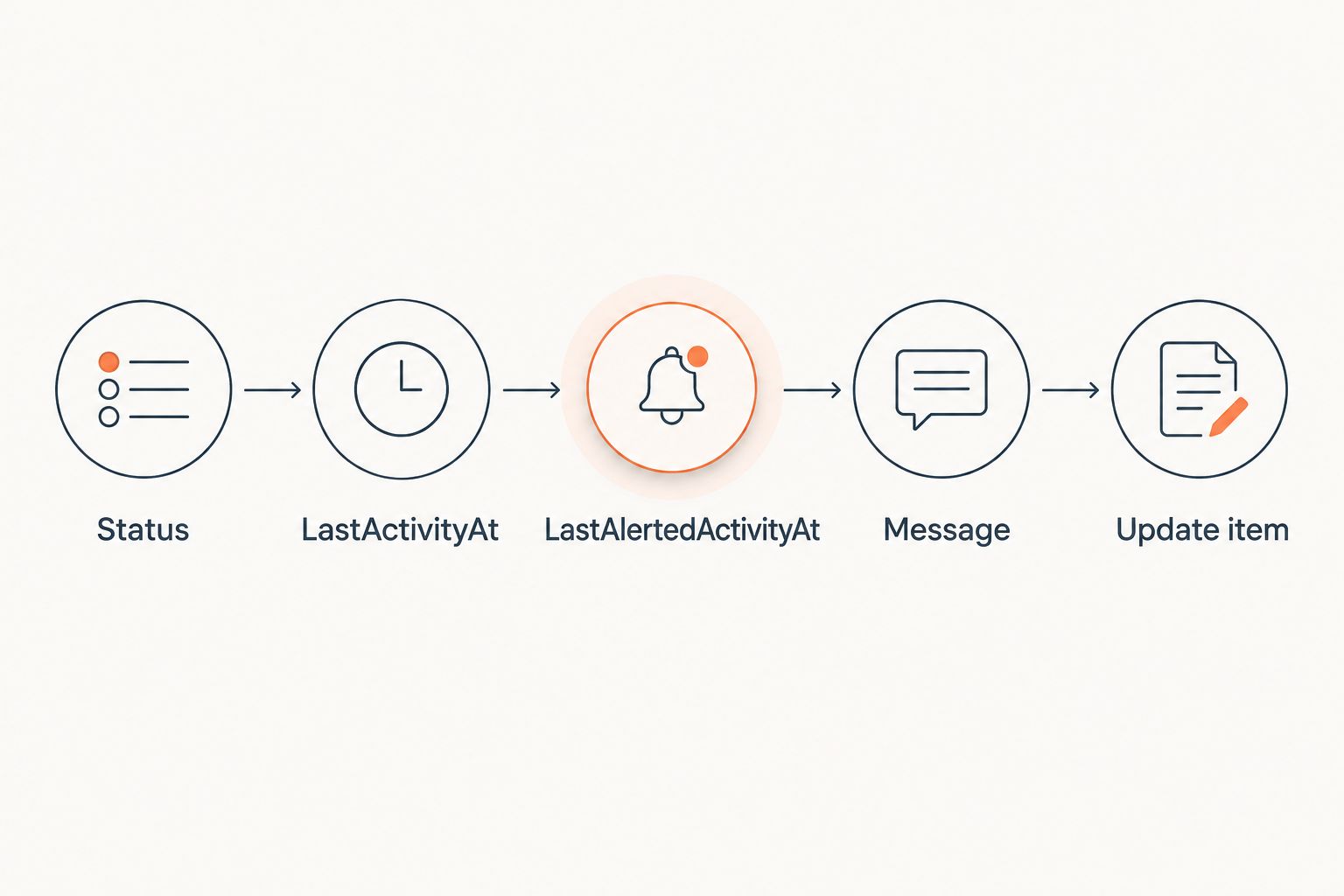
- Create LastActivityAt and LastAlertedActivityAt as date-and-time columns. Require LastActivityAt; leave LastAlertedActivityAt empty initially.
- Add SourceRecordUrl as a hyperlink column if your source system provides a record URL. Copy the actual reference rather than constructing a guessed path.
Expected result: Every test quote has a stable reference, a responsible owner, an explicit status, and a usable activity timestamp.
Define meaningful activity
Treat a recorded buyer response, a completed rep follow-up, or a substantive quote revision as activity. Do not reset the clock when someone changes an internal tag or when the flow records alert delivery.
For illustration, set the inactivity threshold to 3 calendar days and run the check every 1 day. These are example settings, not manufacturing benchmarks. Use your documented follow-up policy to choose the production threshold.
If a buyer has an agreed future decision date, add a separate hold or next-action field and exclude that record until the agreed date. Do not overwrite the actual activity timestamp to hide the quote from the alert rule.
Scheduled trigger configuration
Build the recurring check
- In Power Automate, select Create, then Scheduled cloud flow. Give the flow a descriptive name that identifies its quote source and destination channel.
- Set the start time and repeat schedule. For the example, configure Interval as 1 and Frequency as Day in the Recurrence trigger.
- Open the trigger's Settings. Enable Concurrency Control and set Degree of Parallelism to 1 so scheduled runs do not overlap.
- Add the SharePoint Get items action. Set Site Address and List Name to your pilot list.
- Add Apply to each and supply the value output from Get items. Keep this loop sequential while validating the alert-state updates.
Expected result: A scheduled run reads the pilot list and evaluates each returned quote once within that run.
Check retrieval before adding alerts
In 2026, do not treat a successful flow status as proof that every open quote was checked. Compare the returned records with the expected pilot records in the action output.
For a larger production list, configure retrieval deliberately: use supported query filtering, inspect pagination settings, and verify list-query constraints with your administrator. Field display names and internal names can differ in SharePoint filters. Start without a custom filter on the small pilot, then validate any production filter against known included and excluded records.
A CRM or ERP connector can replace the SharePoint retrieval action when it exposes the necessary records. That substitution requires its own field mapping, permissions, and update action; the SharePoint steps are not interchangeable connector instructions.
Stall rule configuration
Evaluate eligibility and inactivity
- Inside Apply to each, add a Condition that checks whether Status equals Sent. Put the remaining checks in its true branch.
- Add a separate Condition to confirm LastActivityAt is populated. Route missing timestamps to a data-quality review rather than calling those quotes stalled.
- Compare LastActivityAt with the cutoff. In an expression,
addDays(utcNow(), -3)creates the cutoff for the example threshold; compare parsed timestamps usingticks()rather than comparing formatted date strings. - Add another Condition that permits an alert only when LastAlertedActivityAt is empty or differs from LastActivityAt. Handle the empty value explicitly before performing timestamp comparisons.
- If you added a hold or next-action date, check that it does not exclude the quote before proceeding to notification.
Expected result: Only sent quotes beyond the inactivity threshold, without an existing alert for the same activity timestamp, reach the Teams action.
Keep the rule auditable
A stalled-quote alert needs a reason, an owner, and a source record. Capture those fields before posting so a rep can distinguish inactivity from an engineering hold or an unrecorded buyer response.
The example uses elapsed calendar time, not business days. A production rule based on working days needs an explicit calendar and holiday treatment; changing the schedule alone does not convert the calculation.
For the 2026 pilot, write down the rule beside the flow documentation. Include the eligible statuses, the activity definition, the threshold, and the exclusion conditions. A manager should be able to explain why a specific quote qualified without inspecting every action.
Teams delivery configuration
Post the exception and record delivery
- In the eligible branch, add the Microsoft Teams Post message in a chat or channel action. Authenticate with an approved account.
- Set Post as to Flow bot and Post in to Channel. Select the destination using Team and Channel.
- In Message, include the quote reference, account, owner email, latest meaningful activity, alert reason, and source-record reference. End with the required action: record the next follow-up or an explicit hold in the source system.
- After the Teams action succeeds, add SharePoint Update item. Select the same Site Address and List Name, and map Id from the current quote. Preserve any required fields, including Title.
- Set LastAlertedActivityAt to the quote's current LastActivityAt value. Do not change LastActivityAt as part of alert delivery.
Expected result: Teams receives an actionable message, and the list records which activity timestamp has already generated an alert.
An owner email in message text is not an automatic Teams mention. Validate the connector's supported mention mechanism separately if you need an actual notification to a named user; do not assume that typing an email or an @ symbol creates one.
Verify the complete path
Select Save, then use Test and Manually to run a controlled check. Inspect the trigger, conditions, Teams action, and record update in the run history.
Test a stale sent quote, a recently active sent quote, an accepted quote, and a quote with missing activity data. Run the stale record again without changing its activity timestamp: it should not generate another alert.
Then record new meaningful activity and repeat the check after that record meets your test threshold. The alert-state comparison should allow a new notification for the new activity timestamp. Test both suppression and re-eligibility before enabling the production schedule.
Flag quotes whenever the record is updated
An update-triggered variant is useful for an overdue next-action date or a reassigned quote that needs immediate attention. It complements the scheduled check; it does not replace inactivity detection.
With the same SharePoint example, create a separate automated flow using When an item is created or modified. Read the current quote, evaluate the applicable status and date rules, and reuse the Teams message format.
Guard against self-triggering: Update item also modifies the record. Check the stored alert state before posting, and let nonqualifying runs exit without another update. For more advanced change detection, validate the source connector's supported change-tracking actions.
Use separate rules for separate reasons. An inactivity alert and a missed follow-up alert should not overwrite the same tracking field if you expect both to operate independently.
Troubleshooting
The flow succeeds but no alert appears
Inspect each Condition result and confirm the quote was returned by Get items. Check the exact status value, cutoff calculation, hold fields, and previous alert timestamp. A successful run can legitimately contain no eligible quotes.
Teams rejects the message
Recheck the Microsoft Teams connection, selected destination, channel access, and administrator policies. Test a plain-text message in the same standard channel before adding formatting or mentions. Use the failed action's error details to identify the permission or destination problem.
The same quote appears repeatedly
Inspect Update item after the Teams action. If the message succeeds but the update fails, the next run still sees an unalerted record. Correct the update mapping and reconcile the delivered message before retrying; serial execution does not guarantee exactly-once delivery.
Recently active quotes are flagged
Check whether the source integration updates LastActivityAt for real buyer responses and completed follow-ups. Also inspect time-zone conversion and missing values. Fix the activity mapping rather than extending the threshold to conceal stale data.
Quote updates trigger a loop
The notification flow is updating its own source record. Keep the update-triggered variant's alert-state guard ahead of the Teams action, and avoid writing back when the record does not qualify. Verify that alert metadata never resets the business-activity clock.
Customize your workflow
Start with a shared channel, then route exceptions by sales territory or owner after the pilot passes. Maintain an explicit owner-to-destination mapping and a fallback for unassigned quotes; do not silently discard exceptions with missing ownership.
Supplyco automates sales follow-up as part of its revenue operations platform. When expanding beyond notifications, define the follow-up process first with the guide to building a sales follow-up cadence for industrial reps. Keep customer outreach approval separate from alert delivery.
For your 2026 operating review, measure whether flagged quotes receive a recorded next action. Track notification delivery separately from buyer responses and quote outcomes. That distinction prevents Teams activity from becoming a substitute for sales execution.
FAQ
How do I set up Microsoft Teams stalled quote alerts?
Use a scheduled Power Automate flow to read quote records, check inactivity and alert history, and post eligible exceptions through the Microsoft Teams connector. Record successful delivery against the activity timestamp so unchanged quotes do not trigger repeated alerts.
Can Teams detect stalled quotes without a CRM connection?
Teams needs a workflow or data source that supplies quote status and activity information. A SharePoint list can support a pilot, but production accuracy depends on keeping it synchronized with the quote system of record.
Should I use a scheduled flow or a quote-update trigger?
Use a scheduled flow to detect inactivity because silence does not create an update event. Add an update-triggered flow for immediate handling of revisions, reassignment, or overdue next-action dates recorded on the quote.
How many days should pass before a quote is flagged?
Use the threshold in your documented follow-up policy. This guide uses 3 calendar days as an example configuration, not an industrial sales benchmark; agreed buyer decision dates and engineering holds need separate treatment.
Will putting a rep's email in the message mention them?
No, plain email text does not automatically create a Teams mention. Configure and test the connector's supported mention mechanism if you need a notification directed to the quote owner.
How do I prevent duplicate stalled quote alerts?
Store the activity timestamp that generated the last successful alert and compare it before posting again. Also prevent overlapping runs and reconcile cases where Teams delivery succeeds but the alert-state update fails.
Does this guide require a native Supplyco Teams integration?
No, this guide describes a Power Automate workflow using a SharePoint list and Microsoft Teams. It does not depend on or assert a native Supplyco Teams connector.
One last thing
Do not reset the inactivity clock when you send the alert. That records internal automation as sales progress and hides the unchanged quote from subsequent exception checks. Keep business activity, notification delivery, and the next required action as separate fields.