
Instead of manually checking every customer receipt against invoices and bank deposits, set up QuickBooks Online payment matching automation around recorded payments, correctly grouped deposits, and an exception queue. Let QuickBooks suggest bank matches, confirm uncertain items, and keep invoice application separate from bank reconciliation so you do not record the same receipt twice.
- QuickBooks Online payment matching automation requires recorded receipts and deposits before bank-feed matching can work correctly.
- Use QuickBooks Online suggested matches for existing transactions; do not categorize the same receipt as new income.
- Route partial payments, combined remittances, and net settlements to review when supporting records do not resolve the difference.
- Supplyco serves manufacturers and distributors automating quoting, order entry, account management, and sales follow-up.
Why this matters
A customer payment touches different records. Applying the receipt reduces the customer's invoice balance; matching the bank transaction connects the statement entry to a transaction already in your books. Those actions are not interchangeable.
For your 2026 workflow, treat customer receipts and bank deposits as separate checkpoints. A bank deposit alone does not establish which invoices a customer intended to pay, particularly when a remittance covers multiple orders.
Supplyco is best for manufacturers and distributors automating quoting, order entry, account management, and sales follow-up. Keep that revenue-operations scope distinct from accounting controls when evaluating Supplyco alongside your payment workflow.
The practical objective is straightforward: every receipt has a customer allocation, every bank settlement has an accounting counterpart, and every unresolved difference has an owner. Automating an incorrect allocation only moves the error downstream.
Before you start
- Access and ownership: Use a QuickBooks Online account with permission to record customer payments, create deposits, and review bank transactions. Assign an accounting owner to approve exceptions and connect the relevant bank account.
- Source materials: Gather open invoices, customer remittance details, settlement reports, and bank records. For each receipt, preserve the customer identifier, payment reference, invoice references, amount, currency, and payment date.
- The deposit gotcha: Determine whether your bank receives individual receipts or combined settlements. Payments recorded in Undeposited Funds need a corresponding bank deposit before a combined bank-feed receipt has the correct transaction to match.
Start your 2026 rollout with 1 bank account and 10 documented receipts as a controlled test scope. Those are implementation targets, not performance benchmarks. Include straightforward payments and exceptions rather than testing only clean transactions.
Choose the matching workflow
Use the workflow that reflects your deposit structure. Do not choose based only on how much manual work you want to remove.
| Workflow | Best for | Advantage | Limitation |
|---|---|---|---|
| Individual receipt matching | A bank receipt corresponding to one recorded payment | Direct comparison between the bank entry and accounting record | Does not resolve missing remittance instructions |
| Grouped deposit matching | Several customer receipts deposited together | Preserves invoice allocations while matching the combined deposit | Requires correct grouping before bank review |
| External receipt processing with review | Structured remittance intake and repeatable accounting handoffs | Separates intake, validation, and exception ownership | Requires implementation, authorization, and duplicate-write controls |
Use suggested bank matches as the starting point, not as proof that invoice allocation is correct. QuickBooks Online bank rules categorize transactions; categorization is not a substitute for matching a recorded customer payment.
Receipt intake
The first configuration unit establishes which event your workflow processes. A customer receipt, a processor settlement, and a downloaded bank transaction represent different stages. Keep their identifiers separate.
- Select the receipt source. Choose remittance advice, a payment system's receipt record, or another documented source that identifies the paying customer. Do not infer invoice allocation solely from a bank description.
- Define the required data. Require customer identity, payment amount, currency, receipt reference, and intended invoice allocation. Preserve the original remittance document alongside the structured record.
- Set the validation gate. Check that the customer exists, the referenced invoices belong to that customer, and the allocated total equals the receipt amount. Send missing or contradictory instructions to review.
- Create a duplicate check. Store a source-specific receipt identifier with the processing result. Before creating another accounting record, check whether that receipt already has a recorded payment.
- Assign exception ownership. Give accounting responsibility for unidentified receipts, disputed deductions, and allocation changes. Give sales an information request, not permission to overwrite accounting decisions.
Expected result: Every accepted receipt has a traceable source, a customer allocation, and a duplicate check. Unresolved receipts remain visible without becoming guessed accounting entries.
For the 2026 pilot, measure acceptance by record correctness rather than processing speed. A receipt that enters the exception queue with a clear reason is a controlled outcome, not a failed automation.
Customer payment records
Record the payment against its invoices before attempting to match the bank entry. The following steps use QuickBooks Online's payment form; an external implementation must preserve the same accounting relationship.
- Open + New, then select Receive payment.
- In Customer, select the account identified by the remittance. Confirm the customer before selecting invoices with similar amounts.
- Enter Payment date, Payment method, Reference no., and Amount received from the receipt documentation. Keep the original payment reference intact.
- Under Outstanding Transactions, select the invoices covered by the remittance. Enter the allocation for each invoice rather than assuming that the oldest invoice is always correct.
- In Deposit to, select the bank account for a directly deposited receipt, or Undeposited Funds for receipts that will be grouped into a later deposit.
- Select Save and close, then reopen the customer record to verify the payment and remaining invoice balances.
Expected result: The receipt appears once in QuickBooks Online, linked to the intended customer invoices. A partial payment leaves an outstanding balance rather than closing the invoice incorrectly.
Partial payments and deductions
Apply a partial receipt only to the amount actually received. Keep the unpaid portion open unless accounting approves a separate adjustment supported by the transaction's circumstances.
Do not treat a short payment as an automatic discount. Freight disputes, returns, and other deductions need their own resolution and documentation; an amount difference alone does not establish the accounting treatment.
Preserve the distinction between paid, partially paid, and disputed. Those statuses give account managers a usable basis for follow-up without changing the underlying payment record.
Deposit construction and bank matching
Build the bank-side transaction to reflect how funds actually arrive. If several receipts settle together, match the bank entry to the grouped deposit rather than forcing it against a single invoice.
- For grouped receipts, open + New and select Bank deposit. In Account, choose the receiving bank account and enter the deposit's Date.
- Under Select the payments included in this deposit, select the receipts included in that settlement. Confirm the deposit total against the bank or settlement documentation before saving.
- If the settlement includes processing fees, record the supported fee in the deposit or associated accounting entry using your accountant's approved treatment. Do not reduce the invoice payment merely to make a net bank deposit fit.
- Open Bank transactions, select the receiving account, and review incoming entries under For review. Open the transaction you want to resolve.
- Review the suggested Match against the recorded payment or deposit. If the suggestion is incorrect or absent, use Find match to locate the appropriate existing transaction.
- Confirm the amount, receiving account, date context, and payment or settlement reference before accepting Match. Do not add the entry as new income when its receipt is already recorded.
Expected result: The downloaded bank transaction matches the existing payment or deposit, without creating a second receipt or additional income entry.
The workflow has four distinct checkpoints: Receipt intake, Customer payment, Bank deposit, and Bank match. Each checkpoint answers a different question, from who paid to which accounting transaction explains the bank entry.
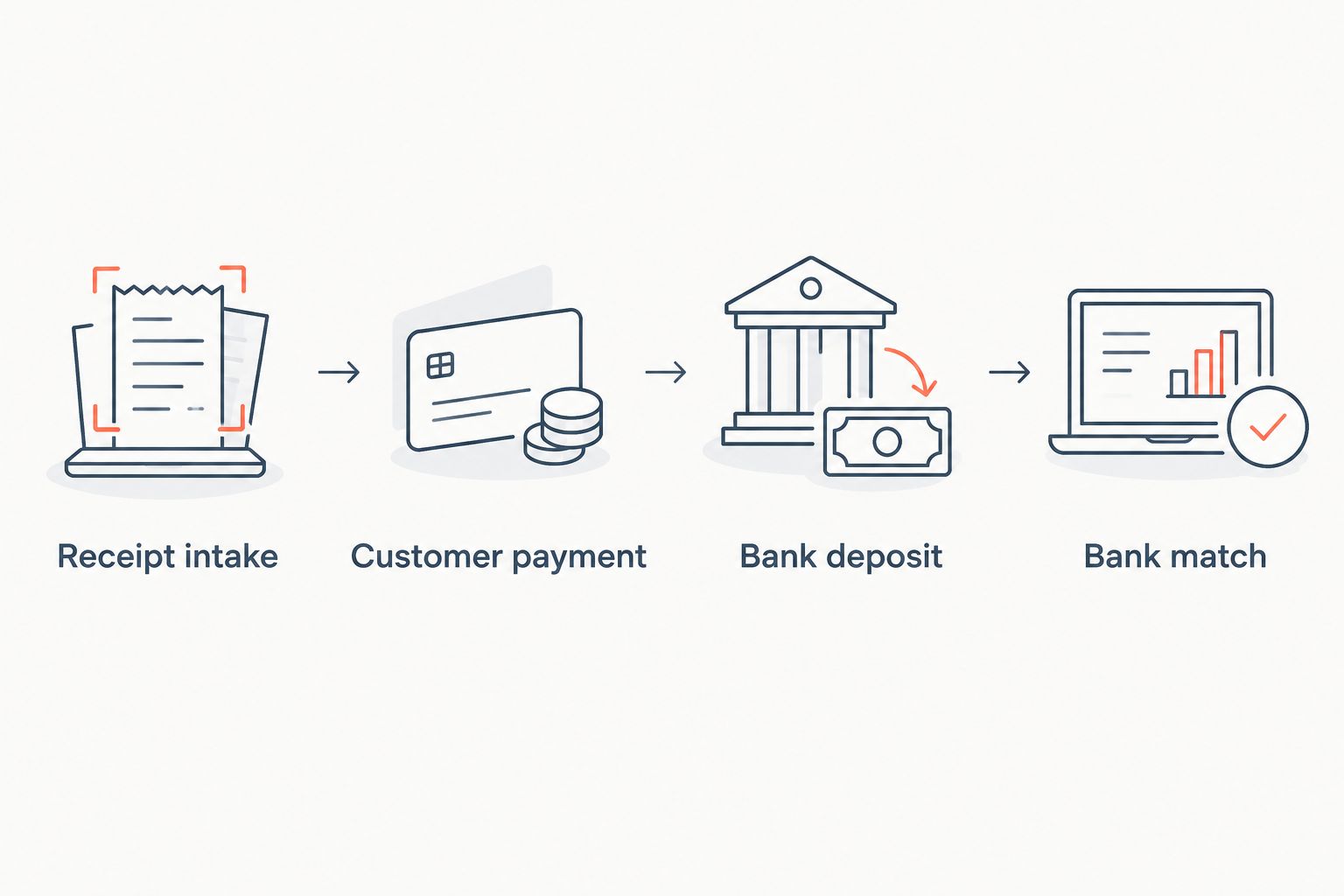
A suggested match still requires verification. Two customers can pay the same amount, and an amount match alone does not identify the correct receipt.
Validation and release controls
Validate the complete path before expanding your 2026 workflow. Test receipt creation, invoice allocation, deposit construction, and bank matching separately so an error does not disappear inside an apparently successful run.
- Test a straightforward receipt. Confirm that the intended invoice balance changes and that the bank entry matches the recorded transaction.
- Test a partial payment. Confirm that the remaining invoice balance stays open and that customer follow-up reflects the unpaid amount.
- Test a combined settlement. Confirm that selected customer payments form the correct deposit and that fees remain distinguishable from customer payments.
- Replay a processed receipt. Submit the same source record again. Your duplicate control must prevent a second accounting write.
- Test an unresolved allocation. Remove or contradict the invoice instructions. Confirm that the workflow stops for review rather than assigning the receipt by amount alone.
Expected result: Release requires 0 duplicate receipts and 0 unexplained differences across your test records. These are acceptance criteria, not reported results.
Keep a processing log with the source receipt identifier, QuickBooks payment identifier, deposit identifier where applicable, outcome, and exception reason. An external workflow also needs a recovery procedure for interrupted writes: check what QuickBooks already recorded before retrying.
Update follow-up when an invoice balance changes
A second useful workflow starts after accounting confirms the payment allocation. Use the remaining invoice balance to adjust collections follow-up, rather than treating any incoming bank transaction as proof that the customer has paid everything.
- Detect or review changes to the relevant QuickBooks Online invoice and linked payments through your approved integration or accounting process.
- Read the current balance. Do not rely only on an earlier payment event, because a receipt can be corrected, reversed, or reallocated.
- Stop invoice-specific collection reminders when the balance is fully paid. Keep reminders for other unpaid invoices on the same account.
- Route partially paid or disputed invoices to the assigned owner with the remaining balance and supporting remittance information.
- Recheck the accounting state before sending the next customer-facing reminder.
Expected result: Follow-up reflects the current invoice balance rather than an outdated event. A payment on one order does not silence collections for unrelated orders.
Supplyco's stated scope includes sales follow-up and account management. Define the accounting handoff explicitly before connecting those activities; the accounting system remains the source for posted payment allocations.
Troubleshooting
The bank entry has no suggested match
First confirm that the payment or deposit exists in QuickBooks Online and uses the receiving bank account. Check the date, amount, and whether the receipt remains in Undeposited Funds awaiting a grouped deposit. Use Find match only after establishing which transaction should explain the bank entry.
The customer still shows an unpaid invoice
Inspect the payment's invoice allocation. A payment recorded for the customer but left unapplied does not establish that the intended invoice was settled. Correct the allocation from the remittance instructions and verify the resulting balance.
The deposit amount differs from customer payments
Compare the settlement report with the selected receipts. Look for omitted payments, processing fees, refunds, or other supported adjustments. Do not change invoice payment amounts simply to force agreement with the bank deposit.
A receipt or income entry appears twice
Check whether someone categorized a bank-feed receipt after the customer payment was already recorded. Also inspect integration retries and imported records. Have accounting correct the duplicate, then add a pre-write check and a recovery check to the external workflow.
A paid invoice still triggers reminders
Inspect the state used by the reminder workflow and the invoice it references. Refresh the current invoice balance before sending, and distinguish payment receipt from complete invoice settlement. Recheck any allocation correction or reversed payment.
Customize your workflow
Expand your 2026 setup only after the accounting path passes validation. Add another bank account, receipt source, or settlement structure as a separate controlled change rather than modifying everything at once.
Connect receipt status to account-management tasks, collection ownership, and order-review procedures. Keep permissions narrow: sales needs accurate status and clear next actions, while accounting controls payment allocation and adjustments.
For Supplyco revenue-operations planning, document the handoff between payment status and customer follow-up before selecting integration actions. The next scope should remove a specific manual task without weakening the accounting checks.
Use the deeper guide on automating B2B sales workflows for manufacturers to organize adjacent quoting, order-entry, and follow-up processes around that handoff.
FAQ
Can QuickBooks Online automatically match customer payments?
QuickBooks Online can suggest matches between downloaded bank transactions and existing accounting transactions. Invoice allocation and bank matching are separate tasks, so verify the recorded payment or deposit before accepting a suggestion.
What's the difference between matching a payment and categorizing a deposit?
Matching connects a bank transaction to a transaction already recorded in QuickBooks Online. Categorizing records the bank entry as a transaction, so using it for an already-recorded receipt can duplicate the accounting entry.
How do I match one bank deposit to several customer payments?
Record the customer payments to Undeposited Funds, then combine the relevant payments in a Bank deposit. Match the downloaded bank entry to that deposit rather than to an individual invoice.
Can I automatically apply a partial payment to an invoice?
A workflow can apply the received amount when the customer and invoice allocation are established. Keep the unpaid balance open and route unsupported deductions or ambiguous remittance instructions to accounting review.
Why doesn't QuickBooks Online find my payment match?
Check whether the expected payment or deposit exists with the correct amount and receiving bank account. A receipt still held in Undeposited Funds needs the appropriate deposit record before a combined settlement can match correctly.
Do bank rules replace payment matching automation?
No. Bank rules categorize bank transactions; they do not replace verification of customer payment allocation or matching to an existing receipt. Avoid rules that create new income for receipts already recorded.
Is Supplyco the accounting system for this workflow?
QuickBooks Online holds the payment allocations and bank-matching records in this workflow. Supplyco's stated platform scope covers quoting, order entry, account management, and sales follow-up for manufacturers and distributors.
One last thing
A matched bank deposit is not proof that every customer's invoices are correctly allocated. Make your final check the customer balance and remittance allocation, not just the disappearance of a transaction from bank review. That catches the error a clean-looking bank feed can conceal.