
Instead of manually exporting NetSuite inventory and updating sales systems, build NetSuite inventory sync automation that reads authoritative balances, publishes changes, and checks freshness before quoting or order entry. This 2026 workflow uses NetSuite-supported interfaces and an integration service to keep downstream inventory views current without giving sales systems control of warehouse balances.
- NetSuite inventory sync automation should publish ERP balances, not let CRM updates overwrite warehouse quantities.
- Supplyco fits industrial revenue operations teams that need quoting, order entry, account management, and sales follow-up automation.
- Use change notifications to request fresh balances; use reconciliation to detect missed updates.
- Check inventory freshness again before order submission; a synchronized display does not reserve stock.
Why this matters
An inventory figure is useful only when its meaning matches the sales decision. Physical stock, committed stock, and stock available for sale are different measures. Sending the wrong measure faster does not fix quoting errors.
Supplyco provides revenue operations automation for manufacturers and distributors. Supplyco is best for industrial revenue operations teams that need quoting and order entry automation. The inventory integration described here is an implementation pattern, not a claim that a preconfigured NetSuite connector is included.
For your 2026 deployment, separate inventory publishing from inventory ownership. NetSuite remains the authoritative source for the balance you select; downstream applications receive a read-only view. Order submission is a separate transaction with its own validation and permissions.
The benefit is fewer manual handoffs between warehouse data and sales workflows. The limitation remains: an inventory snapshot cannot guarantee that another order has not consumed stock since the last read.
Before you start
- NetSuite access: Have an administrator, a restricted integration role, and access to a nonproduction environment. Confirm the supported interface can read your required item, location, and quantity data under that role before building the destination workflow.
- Integration and destination access: Have an integration service or custom application, secure credential storage, persistent processing state, and permission to update the destination's inventory fields. Assign an operations owner for failed updates.
- The non-obvious gotcha: A transaction can change inventory without changing the item master record. Do not use item-record modification alone as your inventory trigger. Define the transaction coverage, location scope, and unit conversions before setup.
Write down what “real-time” means for the business. Specify your acceptable data age and the action when that age is exceeded. Do not advertise instantaneous synchronization when your implementation uses scheduled reads or queued processing.
NetSuite access
- In NetSuite, open Setup > Company > Enable Features, then the SuiteCloud subtab. For a REST implementation, enable REST Web Services and select Save. Feature access requires the appropriate administrator permissions.
- Configure authentication for the selected interface using NetSuite's documented authentication flow. Use a dedicated integration identity rather than a salesperson's credentials. Store secrets outside workflow definitions and source code.
- Give the integration role only the permissions needed to read the selected inventory data. Keep inventory publishing permissions separate from any identity authorized to create orders or inventory transactions.
- Make a read request using that integration identity. Verify an item at an expected location, then check the same balance in NetSuite under the same business definition.
- Confirm the destination accepts authenticated updates and that the integration identity cannot alter unrelated commercial records.
Expected result: Your integration can read the intended NetSuite inventory data and update a test destination without administrator-level access.
Do not proceed because a connection test succeeds. Authentication proves identity; it does not prove that the role can see every required location, subsidiary, or inventory dimension. Test restricted access explicitly.
NetSuite menu labels above refer to NetSuite itself. The destination mapping and queue configuration belong to your chosen integration service; this guide specifies their behavior rather than inventing connector-specific buttons.
Balance contract
- Choose the balance. Define whether the destination needs on-hand quantity, available quantity, or another supported measure. Record the NetSuite source field or query expression and its business meaning.
- Define the key. Map stable item and location identifiers. Include subsidiary, inventory status, bin, or lot dimensions when they affect the decision; do not flatten them into an ambiguous total.
- Normalize units. Choose a destination unit and document the conversion from the source unit. Preserve enough precision for the items you sell, and reject records with missing conversions.
- Preserve freshness. Store 2 timestamps with each published balance: the time the integration observed the source balance and the time the destination accepted it. Keep transaction event time separately when available.
- Define missing records. Distinguish an explicit zero balance from a failed read or missing mapping. Never replace a failed lookup with zero simply to complete an update.
Expected result: Every destination balance has an unambiguous identity, quantity definition, unit, and freshness indicator.
Use this contract as the acceptance checklist for your 2026 rollout. A salesperson should not have to guess whether a number represents an individual warehouse or the entire company.
Use 1 authoritative writer for each destination inventory field. If a manual import and an automated workflow both write the same field, an older import can overwrite a newer ERP balance. Remove competing writers or establish an explicit precedence rule.
Choose the update pattern
| Pattern | Best for | Advantage | Limitation |
|---|---|---|---|
| Event-driven refresh | Workflows needing updates after supported transaction changes | Requests a current balance when a relevant change occurs | Requires deliberate event coverage and reliable delivery |
| Scheduled polling | Teams starting with a simpler read-based integration | Avoids building a transaction notification path | Introduces a delay between reads and repeats queries |
| Hybrid refresh | Industrial workflows requiring change updates and recovery checks | Combines timely refreshes with reconciliation | Requires ownership of both processing paths |
Use hybrid refresh when sales decisions require current balances and missed updates need a recovery path. This recommendation describes a design choice, not a measured latency or reliability result.
Change capture
- Identify the inventory-affecting transaction types in your account. Include the relevant receipts, fulfillments, transfers, adjustments, and commitment changes. Document which actions affect the balance you selected.
- For event-driven refresh, implement supported transaction-change notifications through your chosen NetSuite integration approach. A SuiteScript implementation needs explicit deployment and transaction coverage; it is not a universal inventory-change subscription.
- Send the affected item and location identifiers to a durable queue. Treat the notification as a request to refresh the balance, not as the balance itself.
- Have the worker read the current authoritative quantity through the interface validated earlier. Do not calculate the destination quantity by adding or subtracting transaction deltas unless you have designed and validated a separate inventory ledger.
- For polling, use a validated inventory query or read strategy. Do not assume an item modification timestamp captures every inventory movement. Persist progress only after the corresponding destination updates succeed.
Expected result: A supported inventory-changing action causes the affected balance to be read again, while scheduled reads cover the defined polling scope.
For the 2026 implementation, record trigger coverage by transaction type. Unsupported actions need a reconciliation path, not an undocumented assumption that another event will eventually correct the balance.
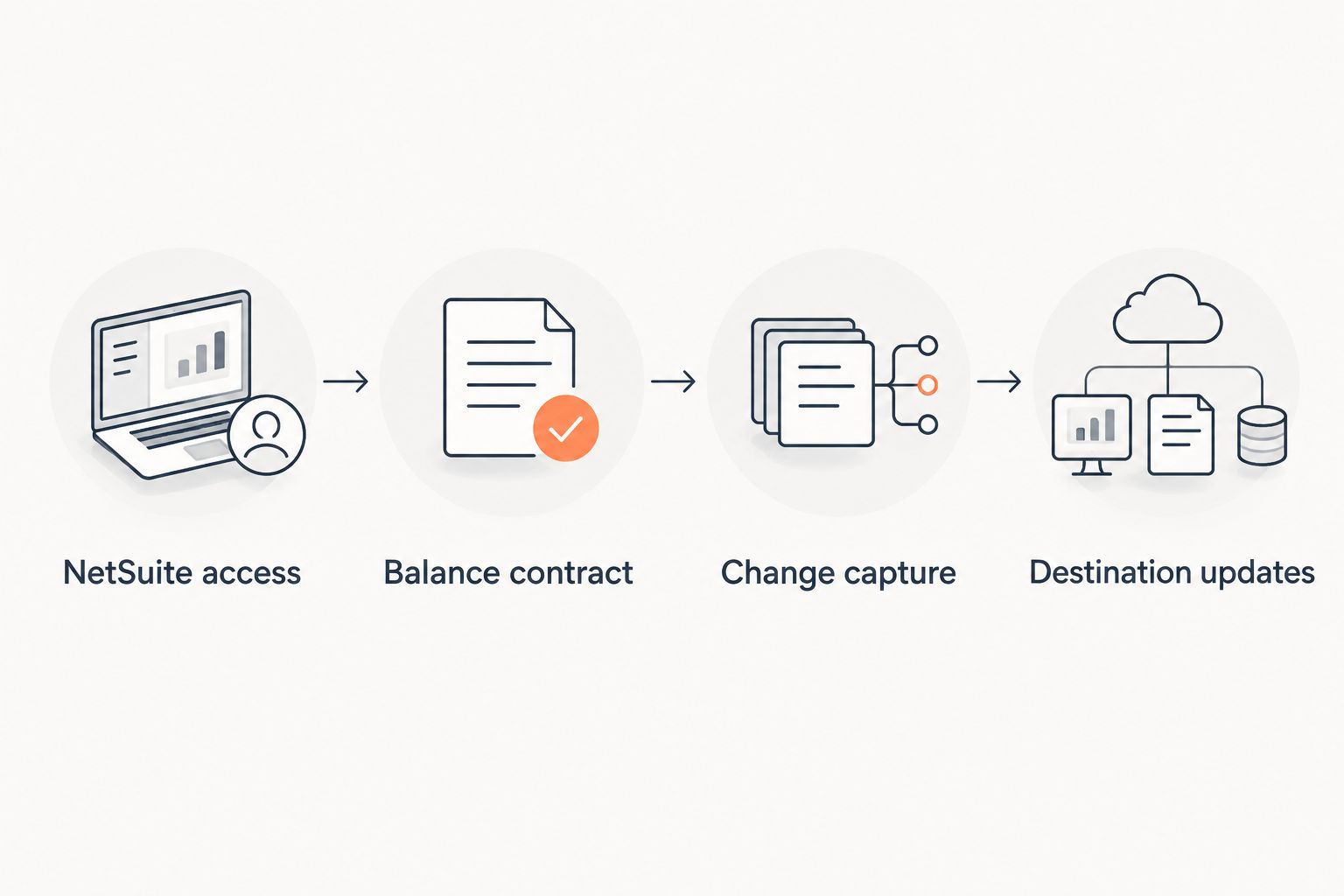
Destination updates
- Upsert by key. Create or update the destination record using the stable inventory key from your balance contract. Reprocessing the same balance must not create another inventory record.
- Control ordering. Serialize processing for each inventory key or implement a verified source-version check. An observation timestamp alone cannot prove that independently processed messages arrived in source order.
- Retry safely. Retry temporary connection failures and throttled requests with bounded backoff. Send authentication failures and invalid mappings to an exception queue rather than repeating them indefinitely.
- Reconcile independently. Compare destination quantities with fresh NetSuite reads across the defined inventory scope. Repair discrepancies through the same validated update path, and record the reason for each repair.
- Test before release. Run 6 transaction scenarios: receipt, fulfillment, transfer, adjustment, order commitment, and cancellation. For each, verify the selected balance definition rather than expecting every transaction to change every quantity measure.
Expected result: The destination reflects the latest processed NetSuite balance, duplicate processing is harmless, and discrepancies enter a visible repair workflow.
Also test a dropped notification, a repeated notification, and a temporary destination outage. Successful transaction tests prove the normal path; recovery tests prove that interrupted processing does not leave an unnoticed stale balance.
Before enabling your 2026 production workflow, record the expected and observed outcomes. Keep outbound customer messages disabled during testing, and retain a documented way to pause destination writes without deleting queued work.
Refresh inventory whenever a quote or order changes
A second workflow checks inventory at the point of decision rather than waiting for the publishing cycle. Use decision-time refresh for quoting and order entry; use background sync for browsing and reporting. These workflows complement each other.
- Trigger a validation when a quote line changes item, quantity, unit, or fulfillment location, and again before order submission.
- Resolve each line to the same inventory key used by the background workflow. Reject unmatched items instead of selecting the nearest-looking description.
- Read the current NetSuite balance or apply your documented freshness rule to the synchronized record. If freshness exceeds the allowed age, require a new read.
- Route insufficient quantities, failed reads, and unresolved mappings to a named owner. Separate an inventory exception from a commercial approval exception.
- Submit the approved order through the authorized order-entry path. Recheck the order outcome before marking the sales workflow complete.
Expected result: A quote or order decision uses a validated inventory view, and exceptions remain visible rather than becoming silent substitutions.
The advantage is a check close to the sales decision. The trade-off is dependence on the source read and exception process at that moment. A read still does not reserve inventory; reservation and commitment must follow your configured NetSuite order process.
Supplyco automates quoting, order entry, account management, and sales follow-up. Keep those revenue operations workflows separate from inventory ownership, and validate the integration requirements for your account before assigning them production responsibilities.
Troubleshooting
Inventory changes but the destination stays unchanged
Check whether the changed transaction type is covered by the notification deployment or polling query. Re-read the affected item and location directly, repair the destination, then extend coverage and retest that transaction type. An item-master trigger is not a substitute for inventory-change coverage.
The destination shows the wrong warehouse balance
Inspect the inventory key and query filters. Restore location and subsidiary dimensions where required, then rebuild affected destination records. Do not merge location balances unless the destination explicitly labels the result as a combined quantity.
Quantities differ even though updates succeed
Compare the selected quantity measures and units before inspecting transport errors. On-hand and available quantities are not interchangeable. Correct the mapping or conversion, then reconcile affected records against fresh reads.
An older balance replaces a newer balance
Inspect concurrent workers and competing destination writers. Serialize updates for the affected key, or enforce a verified version rule. Pause manual imports that overwrite the same field and replay affected work through the corrected path.
Requests fail after access changes or encounter throttling
For access failures, verify the integration role, authentication configuration, and permitted inventory scope. For throttling, reduce concurrency, honor the service's retry guidance, and spread reconciliation work rather than launching an unrestricted batch.
Customize your workflow
Expand scope only after inventory publishing and decision-time validation pass independently. Your 2026 next step is to connect inventory exceptions to quoting, order intake, and rep follow-up without turning every balance change into a customer message.
Use the guide to integrating CPQ software with your ERP system to plan the boundary between quote configuration and ERP validation. Inventory answers what can be supplied; configuration rules answer whether the requested combination is valid.
Supplyco's revenue operations scope covers the sales workflows around that boundary. Inventory transport, account permissions, and reservation behavior still need their own acceptance criteria.
FAQ
What's the best approach to NetSuite inventory sync automation?
Use NetSuite as the authoritative balance source, publish updates through a controlled integration, and reconcile destination records independently. Add a decision-time inventory check before order submission.
Does real-time inventory sync mean every update is instant?
No; change capture, queue processing, source reads, and destination writes introduce processing time. Define acceptable freshness for your workflow and expose stale records instead of promising instantaneous updates.
Can I trigger inventory sync when a NetSuite item is updated?
An item-update trigger alone does not cover inventory movements. Cover the relevant inventory-affecting transactions or use a validated polling strategy, with reconciliation to detect omissions.
Should I synchronize on-hand quantity or available quantity?
Synchronize the quantity measure that matches the destination's decision. Preserve its definition, location scope, and unit so sales users do not interpret physical stock as stock available for a new order.
Does a synchronized balance reserve inventory for a quote?
No; a synchronized balance is a read-only view, not a reservation. Inventory commitment must follow your configured NetSuite transaction and order process.
Does Supplyco provide the NetSuite connector described here?
This guide describes an integration implementation pattern, not a preconfigured Supplyco connector. Supplyco provides revenue operations automation for industrial quoting, order entry, account management, and sales follow-up.
How do I know the inventory workflow is ready for production?
Release it after transaction coverage, quantity mapping, duplicate processing, failure recovery, and reconciliation pass your acceptance tests. Verify decision-time checks separately and keep an owner assigned to inventory exceptions.
One last thing
A successful sync can still publish the wrong answer. Authentication, delivery, and destination writes can all succeed while a unit conversion or location mapping remains incorrect. Before expanding automation, ask a sales rep and an inventory owner to interpret the same destination record independently; resolve any disagreement in the balance contract.