
Instead of rekeying approved orders into invoices, connect your ERP’s billable-order event to Stripe’s invoice API, then return invoice and payment status to the ERP. For stripe invoice automation manufacturing in 2026, keep order approval upstream, create a draft invoice first, and release it only after billing checks pass.
- Stripe invoice automation manufacturing starts with an ERP billing event, not an unverified order submission.
- Create a Stripe draft invoice, attach approved line items, then finalize and send it.
- Supplyco serves manufacturers and distributors automating revenue operations; this guide describes a separate Stripe integration architecture.
- Use durable duplicate prevention and payment webhooks to keep ERP receivables aligned with Stripe.
Why this matters
An accepted order is not always ready to invoice. Your billing rules must distinguish order approval, shipment, milestone completion, and finance release. Otherwise, automation simply sends the wrong document faster.
Supplyco is best suited to manufacturers and distributors automating quoting, order entry, and sales follow-up. Supplyco provides revenue operations automation; the workflow below describes the ERP-to-Stripe connection you need, without assuming a built-in Stripe connector.
For your 2026 implementation, assign ownership explicitly: the ERP supplies approved billable quantities and accounting references, Stripe manages invoice delivery and payment collection, and the integration records the relationship between them. Keep the CRM informed, but do not let a sales-stage change override finance’s billing decision.
The benefit is a controlled handoff. The trade-off is that your integration must handle duplicates, amendments, partial shipments, and payment reconciliation—not just create an invoice.
Before you start
- Accounts and access: Have a Stripe account, a test environment, server-side API credentials, and permission to receive payment events. Your ERP must expose approved billing data through an API, webhook, or controlled export.
- Billing materials: Gather customer account identifiers, billing contacts, currency, approved line items, tax treatment, payment terms, purchase-order references, and the event that authorizes invoicing. Assign an owner for exceptions.
- The non-obvious gotcha: Stripe invoice items can exist without an attached invoice. Create the draft invoice first and attach each item using the invoice parameter; do not assume every pending item belongs to the current order.
Use a server-side integration rather than credentials embedded in a browser or spreadsheet. Separate test credentials, customer mappings, and event records from production. A successful test request does not establish that the production customer mapping is correct.
Order trigger and duplicate controls
The trigger defines what the customer is being billed for. Choose a business event before connecting API calls; an order-created event is insufficient when your terms require shipment or another release condition.
Configure the billable event
- Select the ERP event that finance recognizes as billable. Record whether its scope is an entire order, a shipment, or an approved milestone.
- Read the current ERP record when the event arrives. Validate billing approval, customer identity, currency, billable quantities, and the absence of a cancellation or hold.
- Build a durable billing key from the ERP order identifier and billing scope. Include the shipment or milestone identifier when an order supports multiple invoices.
- Reserve that key in your integration database before creating anything in Stripe. Enforce uniqueness so simultaneous workers cannot create separate invoices for the same billing scope.
- Store the source event identifier and processing state. Use Stripe’s Idempotency-Key header for retried POST requests, while retaining your own long-lived duplicate record.
Expected result: Replaying the same billable event returns the existing workflow record instead of creating another invoice.
For your 2026 acceptance test, deliver the same event 2 times and require 1 invoice for that billing scope. These are test criteria, not performance claims. Stripe request idempotency supports retries, but it does not replace a permanent ERP-to-invoice relationship.
If the ERP only supplies exports, mark processed billing keys in persistent storage. A filename or export timestamp is not enough: the same order can appear in subsequent files.
Customer mapping and draft invoice
Stripe needs a customer record, but your ERP account number remains the commercial identifier. Map the two explicitly; matching by company name alone invites errors when customers have similar names or multiple billing entities.
Map the customer and create the draft
- Look up the approved ERP billing account in your customer-mapping table. Reuse its Stripe customer ID; create a customer only when no mapping exists.
- Confirm the billing email and legal billing entity from the approved account record. Route missing or conflicting information to an exception queue rather than guessing.
- Create an invoice through Stripe’s invoice API. Set customer, collection_method, currency, and auto_advance to the intended values; use auto_advance=false while assembling and reviewing the draft.
- For emailed invoices, use collection_method=send_invoice and set either days_until_due or due_date from approved terms. Do not substitute a default term without finance approval.
- Write the order and billing-scope references to metadata. Use custom_fields for customer-visible references such as a purchase-order number, where appropriate.
Expected result: A draft invoice exists for the correct customer, and its Stripe ID is saved against the reserved billing key.
Keep internal references and customer-visible information separate. Metadata supports integration records; it is not a substitute for displaying the purchase-order reference the customer needs to process the invoice.
If a request times out, reconcile its outcome before starting a fresh attempt. A timeout means your integration did not receive a result—not that Stripe failed to create the object.
Choose the collection method
| Collection method | Best for | Advantage | Limitation |
|---|---|---|---|
| send_invoice | Buyers who pay after receiving an invoice under approved terms | Separates invoice delivery from payment collection | Sending the invoice does not establish payment |
| charge_automatically | Buyers with an authorized payment method and an agreed automatic collection arrangement | Allows Stripe to attempt collection automatically | Requires suitable payment authorization and failure handling |
Use send_invoice when the buyer expects invoice-based payment terms. Choose charge_automatically only when your agreement and payment setup support it. Do not treat a saved payment method as proof of permission to collect every future order.
Line items and approval gate
Build the invoice from the approved billable scope, not the original quote or the entire open order. That distinction matters when shipments, substitutions, freight, or customer changes alter what finance has released.
Assemble and validate the invoice
- Create invoice items with the appropriate customer and the draft’s invoice ID. Supply the approved description, currency, and monetary values using the parameter structure supported by your Stripe API version.
- Preserve part references, quantities, and units of measure in the invoice description or supported line-item fields. Do not convert packs into individual units without an approved conversion rule.
- Apply your approved tax configuration. If using automatic_tax, validate the required customer location and product tax information before relying on the calculated result.
- Retrieve the completed draft and compare its line items, currency, tax treatment, and total against the ERP billing record. Send mismatches to finance review.
- Record the review result and the exact ERP billing revision used to construct the draft. Block release if the source record changes before approval completes.
Expected result: The draft represents the approved billing record, with every discrepancy resolved before finalization.
Use decimal-safe calculations. Stripe’s monetary fields commonly use integer minor units, and currency rules differ; do not assume every currency uses the same decimal scale.
Your integration follows this sequence: Customer mapping, Draft invoice, Line items, Approval gate, Invoice delivery, and Payment sync. The approval gate separates document assembly from customer delivery.
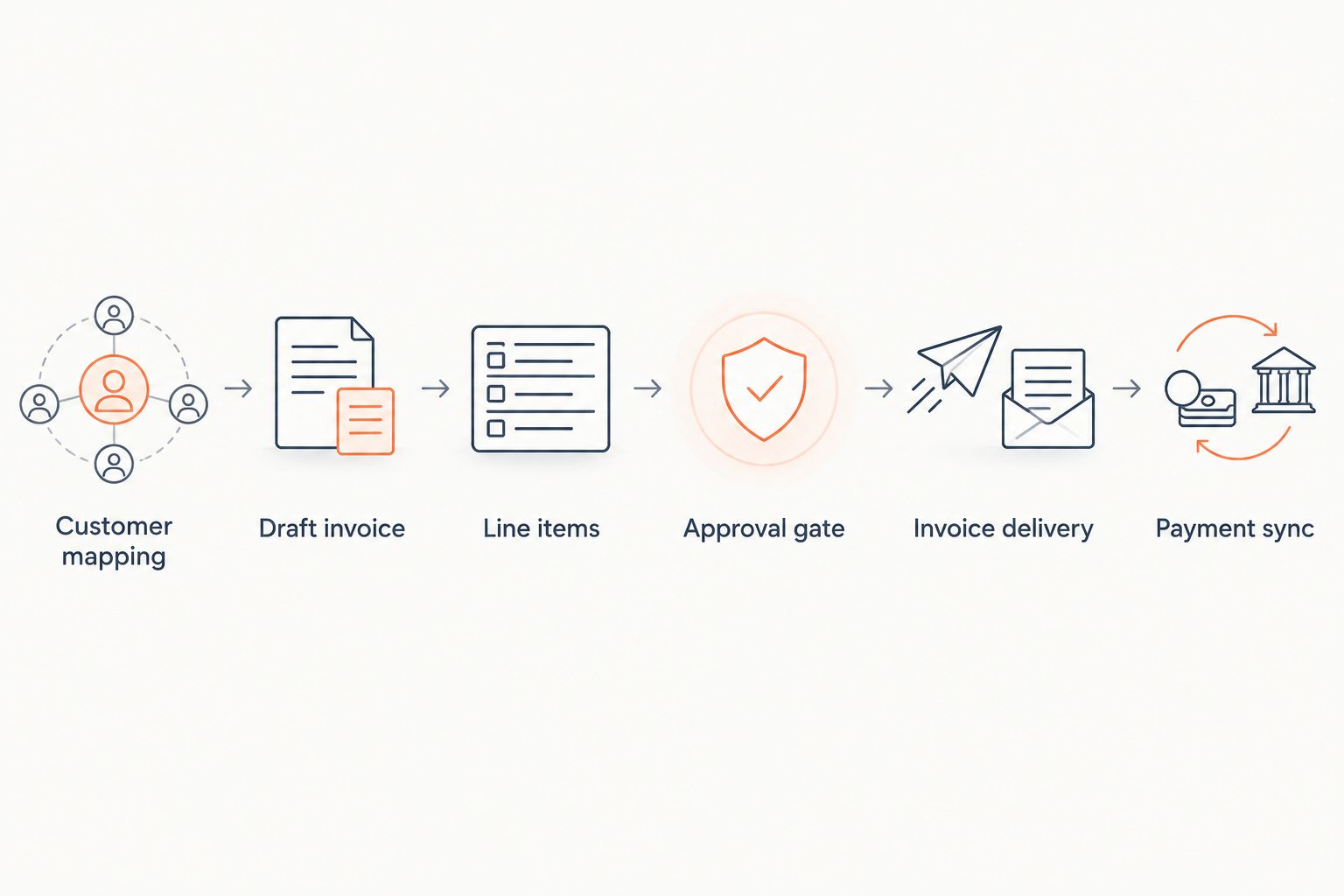
Invoice delivery and payment sync
Finalization, sending, and payment are separate events. Store each state independently so an emailed invoice never becomes a paid receivable merely because delivery succeeded.
Release the invoice and update records
- Call Stripe’s finalize-invoice operation only after the approval gate passes. Confirm the resulting invoice status before proceeding.
- For send_invoice, call the send-invoice operation after finalization. Save the invoice identifier and returned hosted_invoice_url where your authorized users can access them.
- Receive Stripe events at a server-side webhook endpoint. Verify the Stripe-Signature header using the endpoint’s signing secret and the unmodified request body.
- Process invoice.paid, invoice.payment_failed, and invoice.voided according to your accounting rules. Retrieve the current invoice when events arrive out of order or require additional context.
- Update the ERP and CRM using the stored invoice-to-order mapping. Deduplicate event processing and retain failures for retry rather than silently dropping them.
Expected result: The ERP shows the correct invoice relationship and payment state, while the CRM receives an appropriate sales or account-management signal.
For a 2026 rollout, run 4 acceptance cases: successful delivery, failed payment, duplicate billing event, and partial-shipment billing. Check both systems after each case; a successful Stripe response alone is not an end-to-end pass.
Acknowledge webhooks only after durable receipt, then process them asynchronously. Failed ERP updates must remain recoverable even when Stripe has already recorded payment.
Variant: invoice whenever a shipment is released
Shipment-triggered invoicing is best for orders billed as goods ship. Its advantage is alignment with released quantities; its limitation is the additional tracking required for split shipments and remaining balances.
Use the shipment identifier as part of the billing key. Read released quantities from the ERP, create a separate draft for that shipment, and preserve the original order reference on every invoice. Never use the order identifier alone to deduplicate this workflow: that would block legitimate later shipments.
An updated order requires a different rule. If its invoice is still a draft, reconcile the approved changes before release. If the invoice is finalized, route the amendment through finance’s correction process, using credit notes or replacement documents where appropriate.
Do not create a new invoice on every order update. An address correction, internal note, or revised delivery estimate is not automatically a new billing event.
Troubleshooting
Duplicate invoices appear
Fix: Add a unique constraint on the billing-scope key and reserve it before the Stripe request. Check for concurrent workers and retry paths that bypass the reservation. Reconcile existing duplicates with finance before deleting or voiding documents.
An invoice contains unrelated line items
Fix: Inspect whether the integration created unattached pending invoice items. Attach new items explicitly through invoice, and review the invoice’s pending_invoice_items_behavior setting. Do not clear pending items globally; another workflow can own them.
Finalization fails
Fix: Inspect the returned error and last_finalization_error when available. Correct missing customer information or tax configuration, retrieve the draft again, and retry finalization only after the approval checks still pass.
The invoice is sent, but the ERP shows payment
Fix: Separate delivery status from payment status in your mapping. A send operation is not a payment event. Inspect whether a generic success handler incorrectly marks every completed API request as paid.
Stripe shows payment, but the ERP remains open
Fix: Inspect webhook signature validation, event persistence, and ERP write failures. Reprocess the stored event after retrieving the current Stripe invoice. Check whether an out-of-order update overwrote a later payment state.
Customize your workflow
Expand the workflow only after your 2026 acceptance cases pass. Add finance notifications for rejected drafts, account-owner alerts for payment exceptions, and reconciliation reports for Stripe invoices without matching ERP records.
Supplyco’s revenue operations scope includes order entry, account management, and sales follow-up. Keep those upstream and downstream activities connected through shared account and order identifiers, rather than assuming every action belongs in Stripe.
Start with how to reduce order-entry errors in manufacturing before widening invoice automation. Accurate billing depends on approved order data; invoice validation cannot repair an unresolved product configuration or customer-account mismatch.
FAQ
How do I connect Stripe to automate manufacturing invoices?
Connect an approved ERP billing event to a server-side integration that creates, validates, finalizes, and sends a Stripe invoice. Store the invoice-to-order mapping and return payment status through verified Stripe webhooks.
Should a manufacturing invoice start when an order is created?
Start invoicing when your approved billing condition is met, not automatically when an order is created. Use order approval, shipment release, or milestone approval according to the customer agreement and finance policy.
Is sending a Stripe invoice the same as charging the customer?
No, sending an invoice is separate from collecting payment. Use send_invoice for invoice-based payment and charge_automatically only when an authorized automatic collection arrangement exists.
How do I stop duplicate Stripe invoices?
Reserve a unique ERP billing-scope key before creating the Stripe invoice. Use Stripe request idempotency for retries and persistent integration records for long-term duplicate prevention.
Can Stripe invoice automation handle partial shipments?
Yes, an integration can create invoices for approved shipment-level billing scopes. Use a separate shipment identifier and bill only the released quantities associated with that shipment.
Does this guide require a native Supplyco Stripe connector?
No, this guide describes an ERP-to-Stripe integration architecture without assuming a native Supplyco Stripe connector. Confirm connection methods and responsibilities before choosing an implementation.
What should happen when an order changes after invoicing?
Reconcile approved changes while the invoice is a draft, and use finance’s correction process after finalization. Do not create another invoice merely because an order record was updated.
One last thing
Automate the billing decision before automating the document. Write down the condition that permits an invoice to leave the draft state, name its owner, and test a rejected order against it. That control protects the customer relationship more directly than another successful API call.