
Instead of manually copying account health scores into Salesforce, connect your scoring source to the Account object, match records by a stable customer identifier, and update dedicated health fields automatically. This guide covers a controlled 2026 setup for salesforce account health sync automation, including record matching, stale-update protection, and follow-up tasks.
- Salesforce account health sync automation needs stable account IDs, writable health fields, and timestamp checks.
- Keep account health scoring separate from Salesforce record updates; publish the score, band, reason, and freshness.
- Supplyco serves manufacturers and distributors automating account management and sales follow-up.
- Start with scheduled updates; use event-driven updates when source changes require faster action.
Why this matters
A health score that lives outside Salesforce cannot guide an account owner's daily work unless the owner checks another system. Put the score beside the account, but retain the evidence behind it: when the source calculated it and why the account changed bands.
Supplyco is best for manufacturers and distributors seeking revenue operations automation across quoting, order entry, account management, and sales follow-up. Supplyco provides those functions; the workflow below describes Salesforce configuration and integration requirements, not a documented Supplyco connector.
For industrial accounts, define whether health belongs to a customer, branch, or buying location. Otherwise, a healthy parent account can conceal a deteriorating branch relationship. Your 2026 implementation should resolve that account structure before publishing scores.
Before you start
- Salesforce access: Have an administrator create Account fields and permissions, and confirm that your Salesforce organization permits the API access your integration requires. Use a sandbox and a dedicated integration identity with access limited to the required records and fields.
- Scoring materials: Prepare a source containing customer identifiers, calculated scores, health bands, reasons, and calculation timestamps. Agree on the score definition using the guide to building account health scores for industrial distributor customers.
- The matching gotcha: Confirm which ERP customer identifier maps to each Salesforce Account. Names are not identifiers. If identifiers repeat across companies or branches, construct a unique company-and-customer key before setup; an integration that matches on names can update the wrong account.
Account field configuration
The fields below are proposed custom fields, not standard Salesforce account health fields. Their labels and API names become part of your integration contract after you create them.
Create the account health schema
- Open Setup, then Object Manager, then Account. Select Fields & Relationships and New to create each field in the table.
- Select the appropriate field type, then enter the proposed Field Label. Check the resulting Field Name before saving; existing fields can require different names.
- Grant the integration identity permission to edit these fields. Give sales users read access unless your process explicitly permits manual overrides.
- Add the fields to the account layout your sales users actually use. Check a representative user's access, not just the administrator's view.
| Proposed field label | Proposed API name | Type | Purpose |
|---|---|---|---|
| ERP Customer Key | ERP_Customer_Key__c | Text | Stable source-to-Account match |
| Account Health Score | Account_Health_Score__c | Number | Calculated score from the source |
| Account Health Band | Account_Health_Band__c | Picklist | Operational category for routing |
| Account Health Reason | Account_Health_Reason__c | Long Text Area | Explanation of the current score |
| Health Source Updated At | Health_Source_Updated_At__c | Date/Time | Time the source calculated health |
| Health Synced At | Health_Synced_At__c | Date/Time | Time the integration wrote Salesforce |
For ERP Customer Key, select External ID and Unique if the key is truly unique at the chosen account level. First clean existing duplicates. An external ID supports matching; uniqueness prevents multiple Accounts from sharing that key.
Choose a scoring scale explicitly. A 0–100 point scale is a configuration example, not a Salesforce requirement or an industry benchmark. If you adopt it, reject values outside that range instead of silently adjusting them.
Use agreed picklist values such as Healthy, Watch, and At Risk. Keep the mapping identical between the source and Salesforce; restricted picklists reject unrecognized values.
Expected result: An authorized integration identity can update one test Account's health fields, and a sales user can read them without gaining permission to change the source-owned score.
Source connection and account matching
Salesforce does not calculate industrial account health merely because you create these fields. Your scoring process must publish the account's calculated state, and an integration must write that state to Salesforce.
Connect the source securely
- Have your Salesforce administrator configure an approved OAuth application and authentication method for the integration. Use your organization's security policy rather than a shared salesperson login.
- Configure the integration runtime to connect to the correct environment. Keep sandbox credentials and production credentials separate.
- Retrieve the Account object metadata and verify the exact API names, data types, and writable fields. Do not assume the proposed names survived unchanged.
- Read source rows containing the customer key, score, band, reason, and source calculation timestamp. Preserve identifiers as text so leading zeros remain intact.
- Find the corresponding Salesforce Account using the approved key. Require exactly one match, then retain the returned Salesforce record ID for the update.
A missing match belongs in an exception queue. Multiple matches require data correction. Do not create a new Account just because a score cannot be matched.
Salesforce upsert operations can create records when no matching external ID exists. For an existing-account-only workflow, resolve the match first and update by record ID. That makes the no-create requirement explicit.
For a 2026 rollout, test 3 accounts: one valid match, one missing match, and one ambiguous mapping. The valid account should proceed; the other cases should stop with a readable exception. This is a proposed acceptance test, not a performance claim.
Expected result: Each accepted source row resolves to one existing Salesforce Account, and unmatched rows remain outside the write path.
Update rules and verification
A connection is not a safe sync until you define which system owns each field and which update wins. Keep Salesforce as the destination for published health, while the scoring source owns the calculation.
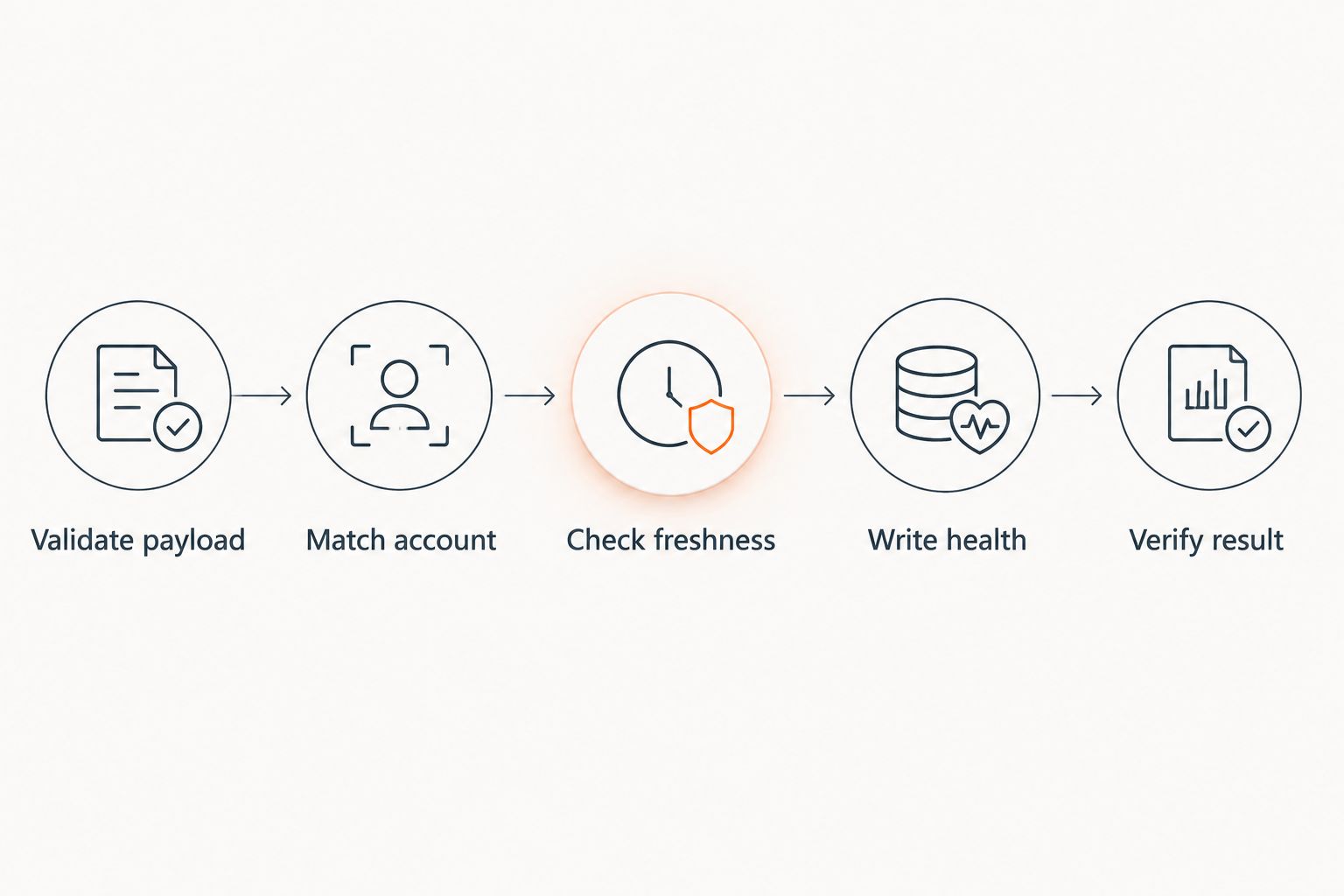
Configure the health writer
- Validate payload. Require the customer key, source timestamp, score, and band. Treat a missing score as missing data, not zero; zero can mean a genuinely unhealthy account.
- Match account. Resolve the existing Account and read its current health fields. Reject unresolved or ambiguous keys.
- Check freshness. Compare the incoming source timestamp with Health Source Updated At. Reject older snapshots. For an equal timestamp, skip an identical payload and flag a conflicting payload for review.
- Write health. Update the score, band, reason, and source timestamp together on the matched Account. Set Health Synced At to the integration's write time.
- Verify result. Record the Salesforce response and read back the Account during testing. Capture failures by customer key without logging credentials or unnecessary customer data.
Timestamp checking in application code is not sufficient when two workers can update the same Account concurrently. Serialize writes per customer key, or use a Salesforce-side enforcement mechanism designed and tested by your administrator or developer. Otherwise, an older worker can finish last and overwrite a newer score.
Test a valid update, a replay of that update, and an older snapshot. The replay should leave the business state unchanged; the older snapshot should not replace newer health. Also test a rejected picklist value and a field permission failure.
Define freshness separately from health. For example, adopt a 24-hour freshness target for a daily process if that matches your operating requirements. That is a proposed service target, not a promised sync interval. A Healthy band with an overdue source timestamp needs a data-quality warning, not automatic reassurance.
Expected result: Salesforce shows the accepted score and its explanation, repeated delivery does not duplicate business actions, and stale source data cannot replace newer health.
Follow-up task configuration
Publishing a score and assigning work are separate operations. Keep the first workflow responsible for health data; use Salesforce Flow for the follow-up action after the Account update succeeds.
Create the at-risk transition flow
- In Setup, open Flows, select New Flow, and choose Record-Triggered Flow.
- In the start configuration, set Object to Account and select A record is updated. Set the entry condition to Account Health Band equals your exact At Risk picklist value.
- Under When to Run the Flow for Updated Records, select Only when a record is updated to meet the condition requirements. Under Optimize the Flow for, select Actions and Related Records.
- Add Create Records to create a Task. Set its Subject to an agreed operational label, assign Assigned To ID to the Account's owner ID, and set Related To ID to the Account ID. Use valid Task status and priority values from your organization.
- Put the health reason into the task description. Define a due-date rule with the sales manager rather than assuming every risk signal requires the same response time.
- Add fault handling that records or routes task-creation failures. Use Debug to test the flow, then Save and Activate after sandbox acceptance.
The entry setting creates work when an account enters At Risk, not whenever another field changes while it remains At Risk. Test Healthy to At Risk, At Risk to At Risk, and At Risk to Healthy.
An account that later leaves and re-enters At Risk qualifies again. If your process permits only one open health-review task per Account, add a Get Records check for an existing matching open Task before Create Records. Validate that rule against concurrent updates.
For your 2026 acceptance checklist, require a visible owner, an account link, and an actionable reason on every created task. Supplyco's account-management and sales follow-up scope fits this operational objective; confirm the actual connection and task-ownership design before deployment.
Expected result: A qualifying health-band transition creates assigned follow-up work without creating another task on every score refresh.
Variant: sync whenever source health changes
Scheduled synchronization and event-driven synchronization share the same account-matching and write rules. They differ in how the integration learns that a score needs publishing.
| Workflow | Best for | Advantage | Limitation |
|---|---|---|---|
| Scheduled synchronization | Sources that publish periodic health snapshots | Straightforward reconciliation and controlled batching | Salesforce waits until the next run |
| Event-driven synchronization | Sources that emit a reliable health-change event | Writes can follow individual source changes | Requires delivery tracking, retries, and ordering controls |
For the event-driven variant, have the source emit a customer key, source timestamp, and event identifier whenever calculated health changes. Process that event through the same validation, matching, and freshness checks. Store processing results so failed events can be retried without repeating completed business actions.
Do not use every Salesforce Account update as a reason to recalculate external health. The integration's own write is an Account update and can start a feedback loop. Watch the source inputs that determine health, or explicitly exclude integration-owned field changes.
Start with scheduled synchronization when the source lacks reliable change events. Its limitation is delayed visibility, not incorrect scoring. Add event-driven delivery only after your 2026 baseline handles exceptions and replays correctly.
Troubleshooting
Salesforce reports success, but the wrong account changes
Inspect the source key, company context, and matched Salesforce ID. Replace name matching with a unique customer key, correct branch mappings, and quarantine ambiguous records. Review affected Accounts before resuming writes.
Updates fail with field or picklist errors
Check object permissions, field-level permissions, validation rules, and the exact picklist value. Test using the integration identity. Administrator access does not prove the integration identity has equivalent access.
Scores move backward after a retry
Inspect calculation timestamps and worker concurrency. A successful retry can still contain old business data. Enforce timestamp ordering and serialize writes per customer key; retry delivery failures without relaxing freshness checks.
Every refresh creates another follow-up task
Check the flow's updated-record execution setting and whether another automation also creates tasks. Use a health-band transition trigger, then add an existing-open-task check if your policy requires it. Task deduplication must cover every task writer.
Salesforce looks healthy after the source stops updating
Compare the source calculation timestamp with your freshness target. Surface stale health in a report or separate status field and route the integration failure to its owner. Do not change the account's health score simply to represent a transport outage.
Customize your workflow
Expand beyond the score only after matching, permissions, and retries pass acceptance. Add the specific risk driver, segment, or review owner when each field has a defined source and an agreed operational use.
Keep ERP transaction state separate from account health. A health score is not approval to accept an order, release credit, or override an account hold. Those actions require their own rules and authorization.
For Supplyco account-management automation, define whether Salesforce or another system owns follow-up execution. Two systems assigning the same review create duplicate work even when the data sync is correct.
In your 2026 operating review, inspect unmatched accounts, stale source timestamps, failed writes, and task failures separately. Each needs a different fix. A single successful-run indicator cannot establish that every account's health is current.
FAQ
How do I set up Salesforce account health sync automation?
Create dedicated Account health fields, connect an authorized integration, and match source customer keys to existing Salesforce Accounts. Validate timestamps before writing, then use a separate Flow for follow-up actions.
Does Salesforce automatically calculate account health scores?
Creating Account health fields does not automatically calculate a score. Define a scoring process in your chosen source or implement explicit Salesforce scoring logic before publishing health.
Should I match Salesforce accounts by company name?
No. Use a stable customer identifier that is unique at the customer or branch level you manage. Company names can change or match multiple records.
Is scheduled sync better than event-driven sync?
Scheduled sync is the better starting point when your source publishes snapshots but lacks reliable change events. Event-driven sync suits sources with dependable event delivery, provided you control retries and update ordering.
How do I stop duplicate account health follow-up tasks?
Trigger task creation when an Account enters the target health band, not on every refresh. If only one open review task is allowed, check for an existing matching Task before creating another.
Can Supplyco connect to this exact Salesforce health workflow?
Confirm the connection method and field-write requirements with Supplyco before implementation. Supplyco provides revenue operations automation for industrial manufacturers and distributors, including account management and sales follow-up.
What happens when account health data becomes stale?
Flag freshness separately from the health band and investigate the source or integration failure. A stale Healthy score does not establish that the account is currently healthy.
One last thing
A recent sync timestamp does not prove a recent health calculation. An integration can successfully copy yesterday's source data again today. Keep both timestamps visible: the source timestamp establishes freshness, while the sync timestamp establishes delivery.