
Instead of manually rekeying signed quotes into your ERP, connect DocuSign envelope completion to a validated order-entry workflow that creates an order and returns its identifier to your CRM. For manufacturing, the safe trigger is a completed envelope tied to an approved quote revision—not an email notification or an individual recipient’s signature.
- DocuSign order automation manufacturing workflows should trigger on envelope completion, then validate the approved quote before order creation.
- Supplyco supports quoting and order entry automation for industrial manufacturers and distributors; confirm integration requirements before implementation.
- Use a quote revision as the order identity, and store the DocuSign envelope ID for traceability.
- Create the ERP order before sending an order confirmation; keep production release under separate controls.
Why this matters
A signature proves agreement to the document. It does not prove that the customer account, item identifiers, shipping instructions, or engineering revision are valid for ERP order entry. Treat signature completion as permission to evaluate the order, not permission to bypass operational checks.
Supplyco is best for industrial manufacturers and distributors automating quoting and order entry. Its stated scope includes account management and sales follow-up. Establish the DocuSign event route, ERP write method, and approval controls during implementation rather than assuming a native connector.
For a 2026 rollout, define what “launch an order” means. Creating a sales order, releasing a work order, and notifying a customer are separate actions with different approval requirements.
Before you start
- Accounts and access: Have a DocuSign account with access to the required event or API capabilities, an authorized integration identity, an ERP test environment, and permission to read quotes and create orders. Confirm account entitlements and administrator approval before building the trigger.
- Source materials: Prepare the approved quote revision, ERP customer identifier, item identifiers, quantities, units of measure, ship-to details, and any required drawings or specifications. Assign an owner for each validation rule and exception queue.
- The non-obvious gotcha: A recipient signing is not the same as an envelope completing. Countersignatures and other required recipients can remain outstanding; trigger on envelope completion and match it to the exact quote revision sent for signature.
Use DocuSign’s eSignature REST API reference for envelope fields and Connect documentation for event delivery and authentication. For this 2026 implementation, those references govern the DocuSign side; your ERP’s API contract governs order creation.
Quote identity and source records
The first configuration unit establishes which approved document the integration is allowed to convert. Keep structured quote data as the order source; use the signed document as approval evidence. That avoids reconstructing order lines from document formatting.
- Assign an immutable quote identifier and revision in your quoting system. Store both before sending the document for signature. Do not identify the quote by customer name or email subject.
- Save a snapshot of the approved quote lines. Include customer and ship-to identifiers, item codes, quantities, units of measure, requested dates, and drawing revisions where required. Freeze that snapshot against unapproved edits.
- When creating the DocuSign envelope, capture the returned envelopeId. Write it to the quote record and integration ledger so the completion event can resolve the source record.
- Define a business uniqueness key from the quote identifier and revision. Keep this separate from the delivery-event identifier: repeated notifications and replacement envelopes must not create additional orders for the same authorized revision.
- Set an explicit superseded state for replaced quotes. Reject completion events belonging to an obsolete revision until an authorized owner resolves them.
Expected result: Every envelope resolves to a specific approved quote revision, and that revision has a single permitted order-creation outcome. For your initial rollout, enforce a maximum of 1 ERP order per approved quote revision unless your business explicitly requires split orders.
DocuSign completion trigger
The next configuration unit receives the signature event. DocuSign Connect supports event notifications; a scheduled API status check is a separate implementation path when event delivery does not fit your environment.
| Implementation option | Best for | Advantage | Limitation |
|---|---|---|---|
| DocuSign Connect notification | Teams with an authenticated event receiver | Starts processing from an envelope event | Requires receiver security, delivery handling, and account capability checks |
| Scheduled envelope status check | Teams implementing a controlled reconciliation process | Can recover missed events by checking envelope state | Adds a delay determined by the schedule and consumes API requests |
- Configure envelope-level notifications through eventNotification, or use an administrator-managed Connect configuration. Choose the route your account and deployment support; do not configure both as independent order writers.
- For envelope-level notification configuration, use envelopeEvents and set envelopeEventStatusCode to completed. In an account-level configuration, subscribe to envelope completion rather than treating recipient completion as order authorization.
- Point the notification’s url at your integration receiver. Protect the receiver with HTTPS and the supported authentication controls. When using Connect HMAC signatures, verify the signature against the received request body before accepting it.
- Persist the event in a durable queue or ledger before acknowledging successful receipt. Let a worker perform ERP validation and writing; keep that work outside the immediate notification response.
- Read the envelope identifier from the event and resolve the quote mapping. Retrieve current envelope status when needed to confirm completion before continuing.
Expected result: A completed test envelope produces a durable processing record associated with the correct quote. Recipient activity, declined envelopes, and voided envelopes do not authorize order creation.
Validation and exception routing
The validation unit determines whether the signed quote is operationally ready. Keep these checks explicit and repeatable; a salesperson’s approval cannot substitute for the ERP’s customer and item rules.
- Confirm that the envelope belongs to the expected customer and quote revision. Compare the signed-document association with the frozen source record, not with a quote that someone edited after sending.
- Resolve the customer and ship-to against ERP master data. Route unmatched records for review instead of creating a new customer from free-text document fields.
- Validate each item identifier, quantity, and unit of measure. Require engineering approval where your business needs it, particularly for custom configurations or drawing-controlled orders.
- Evaluate account restrictions and required purchasing information. Keep credit approval, customer purchase-order requirements, and contractual exceptions as separate gates with named owners.
- Write a validation outcome with the failed rule and responsible team. Send passing records to order creation; send failing records to a review queue without attempting an ERP write.
Expected result: Valid quotes advance with their source data intact. Invalid quotes produce an actionable exception and 0 ERP orders for a failed validation.
For a 2026 acceptance review, classify each rule as either a hard stop or a review requirement. A missing internal note should not receive the same treatment as an unrecognized item code. Document who can override a rule and preserve the reason for any override.
The core sequence separates signature evidence from operational approval. Each stage has a distinct output, which makes failures easier to locate and retry without repeating completed work.
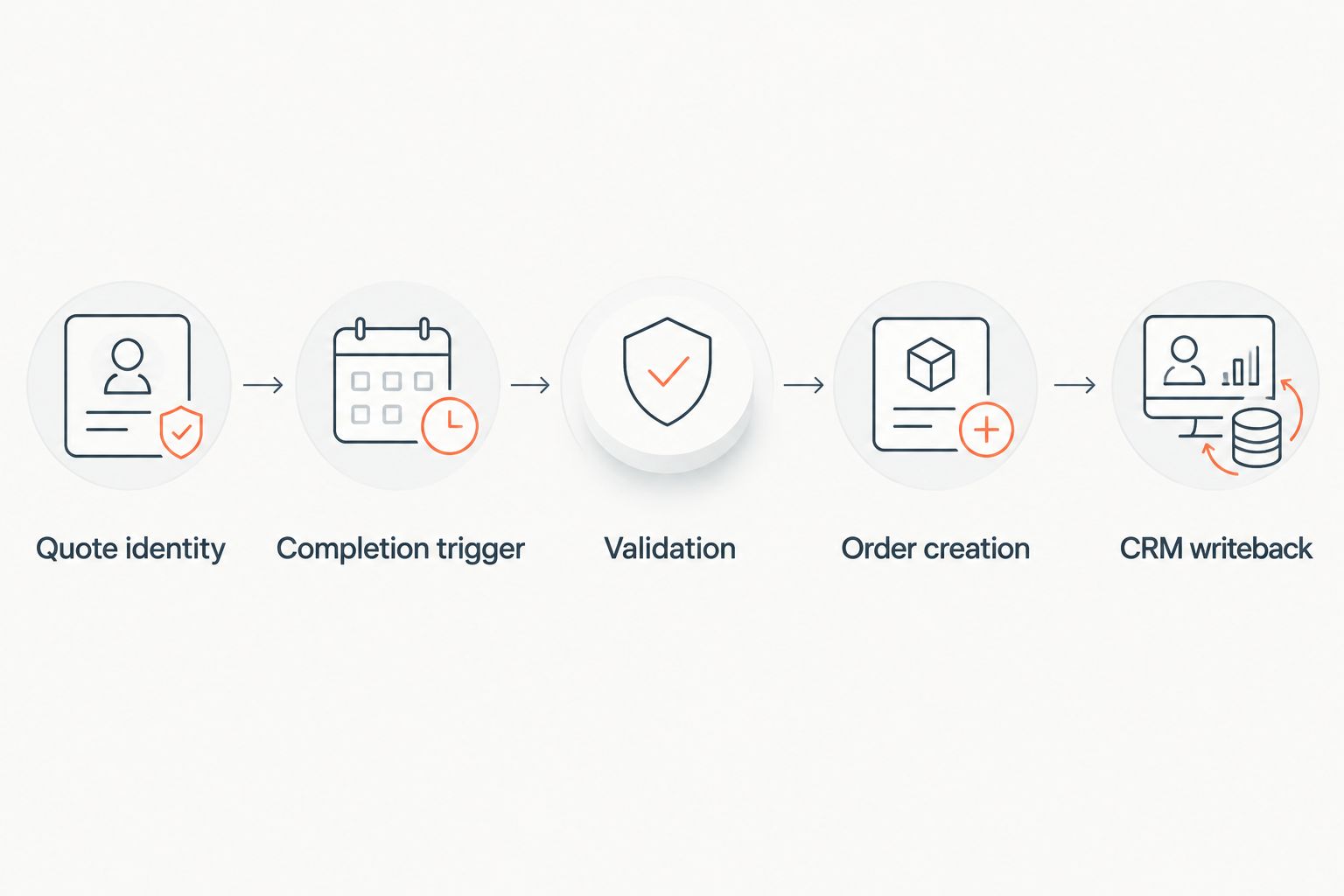
ERP order creation and CRM writeback
The final configuration unit writes the order and records the outcome. A successful signature event is not a successful ERP transaction. Report order success only after the ERP returns an order identifier or reconciliation confirms the order exists.
- Acquire a processing lock or equivalent concurrency control for the quote-revision key. Check the integration ledger and ERP reference before attempting creation. If the order already exists, resume unfinished writeback rather than creating another.
- Map the approved source fields to the ERP’s actual order contract. Use that ERP’s documented field names and required values; do not assume that all systems accept the same payload or default units.
- Submit the order and capture the returned identifier. Store the ERP response, quote revision, envelope identifier, and processing outcome together. Exclude credentials and unnecessary personal information from logs.
- Write the ERP order identifier and outcome back to the CRM or quoting record. Attach or reference the signed document according to your document-retention policy and access controls.
- Start the customer confirmation and internal follow-up only after confirmed order creation. Keep purchasing, work-order release, and production scheduling behind their own authorization rules.
Expected result: Sales and operations can trace the signed quote to the ERP order without searching inboxes. If the ERP succeeds but CRM writeback fails, the workflow retries the writeback—not the order creation.
Acceptance tests before production
Run these 5 test cases in your test environment before enabling the 2026 production workflow:
- Complete an envelope linked to a valid approved quote. Confirm that the order lines match the frozen source.
- Complete a recipient’s signing step while another required recipient remains outstanding. Confirm that no order is created.
- Submit the same completion event again. Confirm that the existing order identifier is reused.
- Complete an envelope for a superseded quote revision. Confirm that the workflow routes it for review.
- Interrupt processing after ERP creation but before CRM writeback. Confirm that recovery completes the writeback without creating another order.
Record the expected and actual result for each case. Keep production credentials separate from test credentials, and require an owner to approve the cutover.
Revalidate when an approved quote changes
A signed amendment is an adjacent workflow, not another opportunity to run the original create-order action. Route an approved revision to an amendment process when its predecessor already has an ERP order.
Start by finding the existing order through the quote relationship. Compare the newly approved revision with the current order lines, then determine whether your ERP and operating policy permit an amendment, a replacement order, or a manual change request.
| Revision workflow | Best for | Advantage | Limitation |
|---|---|---|---|
| Create from initial approval | Quotes with no existing ERP order | Establishes the original order record | Must reject superseded revisions and duplicate requests |
| Amend after renewed approval | Changes to an existing order | Preserves the relationship to the original order | Requires change controls for purchasing, engineering, and production |
Do not use a generic CRM update as an amendment trigger. Require a newly approved revision and its associated completion evidence. If operations has already acted on the order, route the change to the responsible team before updating downstream records.
Troubleshooting
The buyer signed, but processing never started
Check the envelope’s current status and required recipients. An unfinished countersignature explains why recipient signing has not produced envelope completion. If the envelope is completed, inspect the event configuration, receiver authentication, and delivery records before manually resubmitting anything.
The ERP contains duplicate orders
Inspect the quote-revision uniqueness check and concurrent processing behavior. A lookup followed by an unprotected write allows separate workers to create duplicates. Add concurrency control and use the ERP’s supported external-reference or idempotency mechanism where available.
The ERP rejected an item or unit
Compare the frozen quote values with ERP master data. Correct the mapping or route the quote for a controlled revision; do not substitute a similar item or change a unit automatically. Preserve the rejection details so the owner can resolve the actual discrepancy.
The receiver accepted the event, but no order exists
Inspect the durable queue and processing ledger. Successful notification receipt only confirms that the integration accepted the event. Find the validation outcome or ERP error, resolve it, and replay the stored processing record through the same duplicate controls.
The ERP request timed out
Reconcile before retrying creation. A timeout leaves the transaction outcome uncertain, so search using the quote-revision reference and inspect the integration ledger. Retry the write only after determining that an order does not already exist.
Customize your workflow
Extend the process after the base path passes acceptance testing. Add account restrictions, engineering approval, document routing, and follow-up tasks as explicit gates or downstream actions—not as hidden conditions inside the signature trigger.
Supplyco’s revenue operations scope includes quoting, order entry, account management, and sales follow-up. Define which system owns each stage and which integration identity can write to it. Use the guide to automating order entry for industrial manufacturers to plan the broader process beyond signature capture.
For 2026 operating reviews, measure signature-to-order elapsed time, exception volume, and duplicate prevention from your actual processing records. Keep signature completion and ERP creation as separate timestamps so the report exposes validation and integration delays rather than combining them.
FAQ
How do I connect DocuSign to create manufacturing orders?
Connect envelope completion to an integration that resolves the approved quote, validates ERP requirements, and creates the order. Store the ERP order identifier before starting confirmation or downstream release tasks.
Should order automation start when the buyer signs?
Order automation should start from envelope completion, not an individual buyer’s signing event. Required countersignatures or other recipients can still be outstanding after the buyer signs.
Can I connect DocuSign directly to any manufacturing ERP?
The connection depends on the ERP’s supported write interface and your DocuSign account capabilities. Confirm authentication, order fields, event delivery, and administrator permissions before choosing the integration route.
How do I prevent duplicate orders from DocuSign events?
Use a business uniqueness key based on the approved quote identifier and revision, with concurrency control around order creation. Repeated events should return the existing order result rather than initiate another write.
Does a signed quote automatically authorize production?
A signed quote should not automatically authorize production unless your documented operating rules explicitly permit it. Keep credit, engineering, purchasing, and production-release controls separate from signature completion.
What should happen if the ERP request times out?
Reconcile the quote reference against existing ERP orders before retrying creation. The request can have succeeded even when the integration did not receive the response.
Does Supplyco include a native DocuSign connector?
Confirm the DocuSign connection method during implementation rather than assuming a native connector. Supplyco provides revenue operations automation for industrial manufacturers and distributors, including quoting and order entry.
One last thing
The most dangerous retry is the one after an uncertain ERP response. Restarting from the signature trigger without reconciliation can repeat a successful order write. Make the quote-revision reference searchable in the ERP and accessible to the operations team before enabling unattended processing.